


How to Create Pinterest Board Covers
Looking to create Pinterest board covers? Today’s post is a super simple tutorial that is going to help you to create board covers for your Pinterest profile in a matter of minutes.
Pinterest board covers help to organize your profile visually in a way that makes it easy for your audience to see what you create.

I think board covers are important and help your audience to quickly understand what you do, without a lot of people having to guess or open boards (which they won’t do).
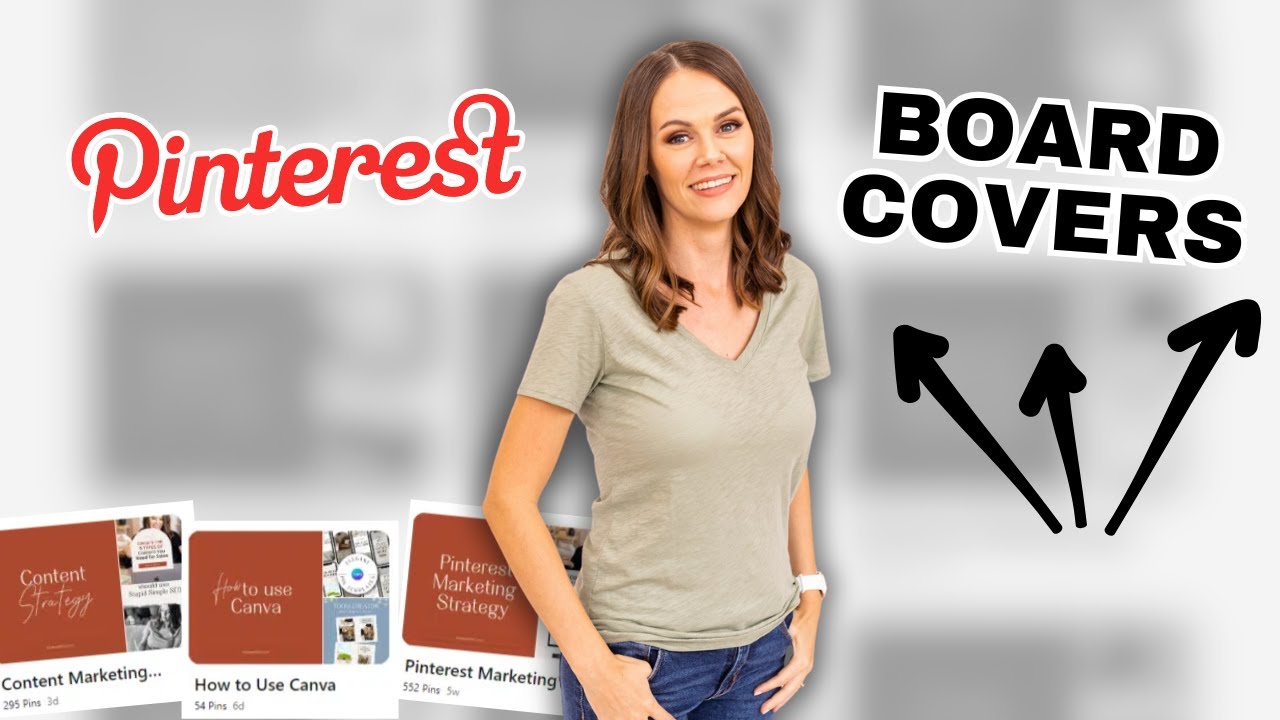
To get started, you need the following:
- Canva cover template that is 2000×2000 or 1:1
- Brand colors & fonts loaded into Canva
- List of board names
- Pinterest board titles & descriptions
- Links you are sending board covers to on your website or store
RELATED: 10 Canva Hacks to Save You Time When Making Pinterest Pins
How to Create Your Board Covers in Canva
First step to get started, open Canva and get your template (pin design) loaded up. Add text to your template, or use one of my Canva templates, and add your first board title name.
Do this for each of your boards keeping it simple and easy to read. Download that file to your computer as a PNG file.

How to Upload Your Board Covers to Pinterest
Click the + plus button from your Pinterest account to create a new pin. You’ll upload your board cover image just like a regular pin.

I like to use the same text I put on my image as the board pin title. Always enter a pin description, and link it to the most appropriate page or blog post on your website that’s relevant.
Pro Tip: Board covers should never be a dead pin. Each board cover should link to your website. Even if it’s just your homepage or a category page. Don’t leave this part blank!
Select the exact board you made it for. Then publish it immediately.
RELATED: How to Write Your Pinterest Descriptions to Get More Clicks & Rank Higher
How to Display Your Board Covers Correctly
Next step, now you have to tell Pinterest you want your board cover to show up exactly, or else they’ll just sit there is a regular pin. To do this, navigate to your specific board you just published your cover to, and click the pencil icon to edit.
Click on the + plus sign, choose your board cover you previously uploaded, make sure it appears, then click ‘Done’ to save your settings.

Last thing, do this for every one of your boards you’ve created (including group boards if you have them). Then your profile will be MUCH cleaner and optimized for your viewers.
RELATED: How to Create a Pinterest Board Strategy
Final Thoughts For Your Pinterest Board Covers
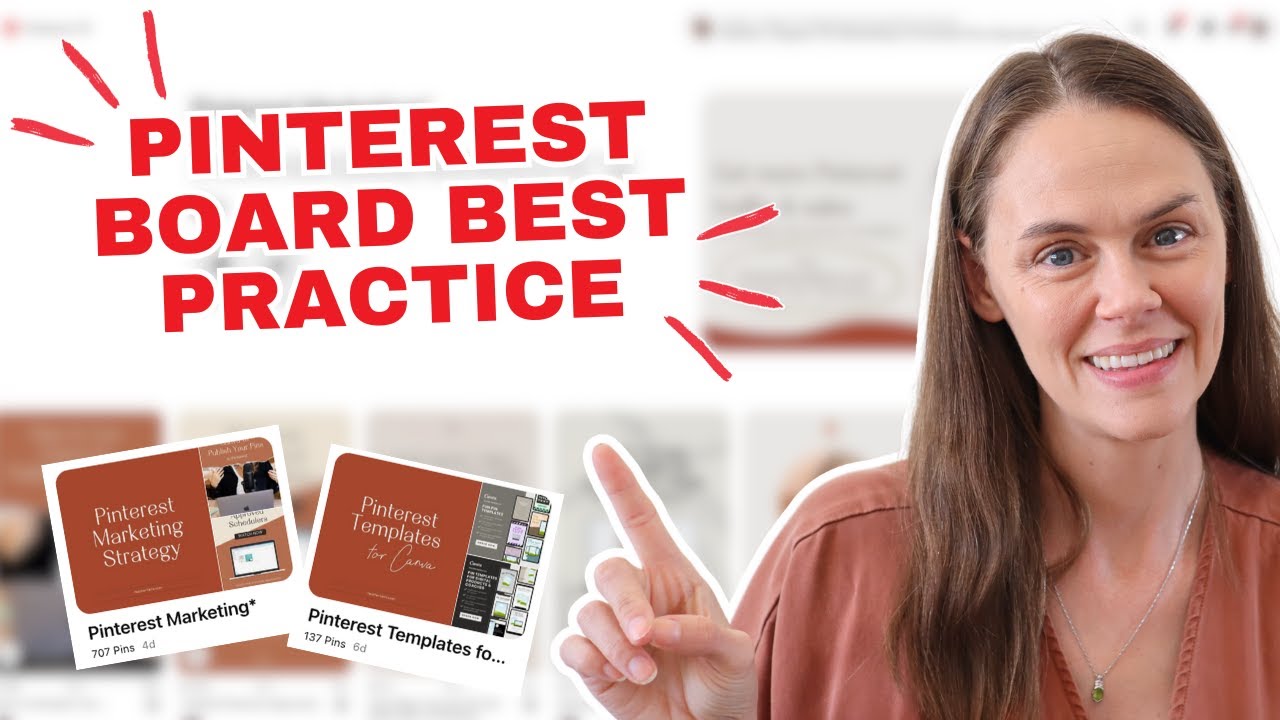
That’s it, the entire process! You’ve now created board covers for your profile. Those are the basics, but check out this video below for your Pinterest boards best practices, because there’s so much more you can do.
If you need extra help with all the processes and systems you’ll find you need to carry your Pinterest strategy, come join my Pin Profit Academy for everything you need to know: keyword research, Pinterest trends, complete Pinterest Marketing strategies, and free Pinterest templates for constant fresh pins. Next thing is to see you inside!
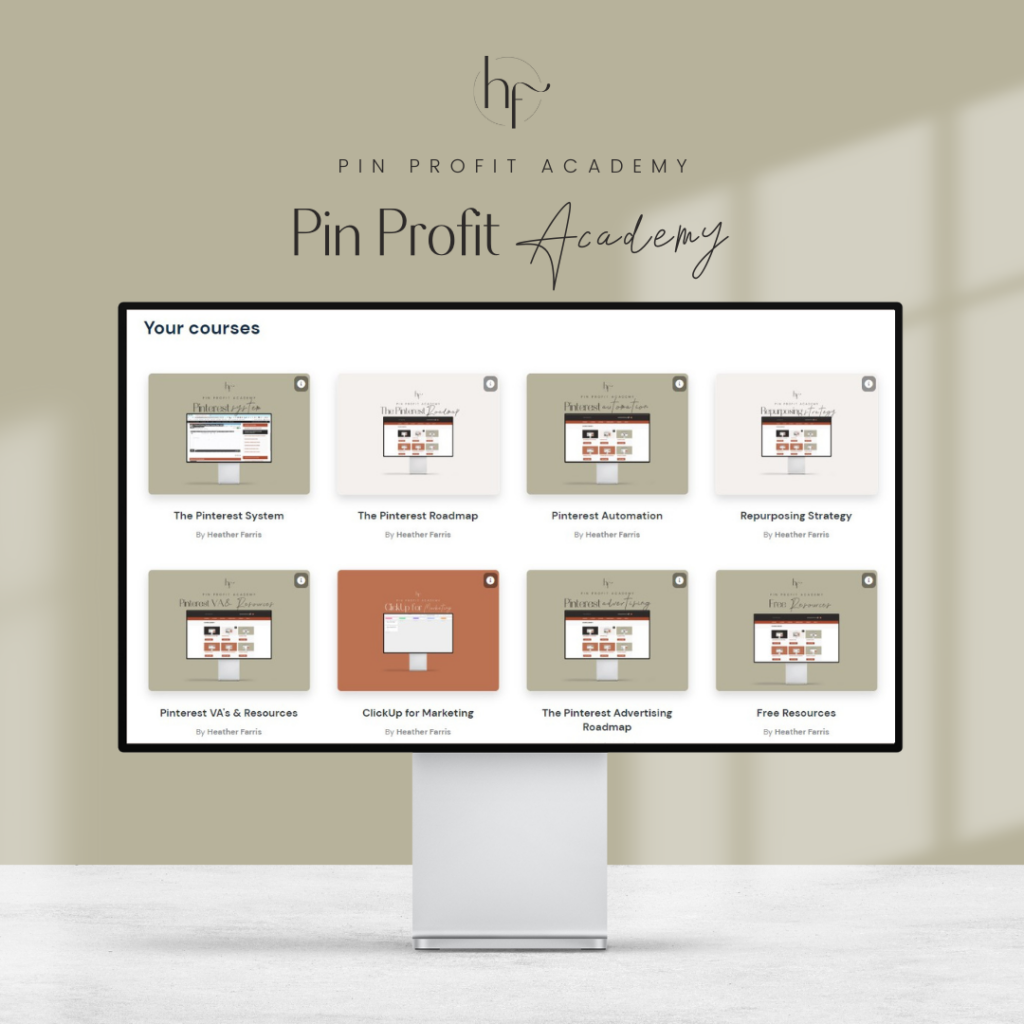
Pin Profit Academy
Marketing can be difficult and trying to figure it out on your own, especially with Pinterest, can be overwhelming.
I will show you how to double your traffic and sales without spending another minute on social media!
PPA is the only comprehensive membership program & community for creating, marketing & selling your products & services using Pinterest.
Pin It For Later


Heather Farris went to school for accounting and worked for years in banking and finance. After finding all of that entirely too boring she started her first blog in her basement in August of 2016. She has started 3 blogs in the marketing, motherhood and travel niches and used Pinterest to grow them all. She quickly became the go-to Pinterest strategist in her peer circles and has been implementing strategies, driving traffic and sales through organic and paid tactics for her clients. On this blog and her YouTube channel, as a renowned Pinterest marketing expert, she educates the public about clear and transparent marketing strategies to help them to grow on Pinterest and in other places online. She created Pin Profit Academy and helps small business owners just like you to master their Pinterest marketing strategy. Heather is now a Pinterest Educator, one of the very few sponsored by Pinterest.





Thank you so much for this info! I had no idea what the purpose of the board cover was or how to use it! I had just been using one of my best pins in each board!
You’re welcome! Great pins can work well for covers too, but I find it’s trickier to master across your profile. Glad it helped!