

How to Bulk Schedule Pins on Pinterest for FREE
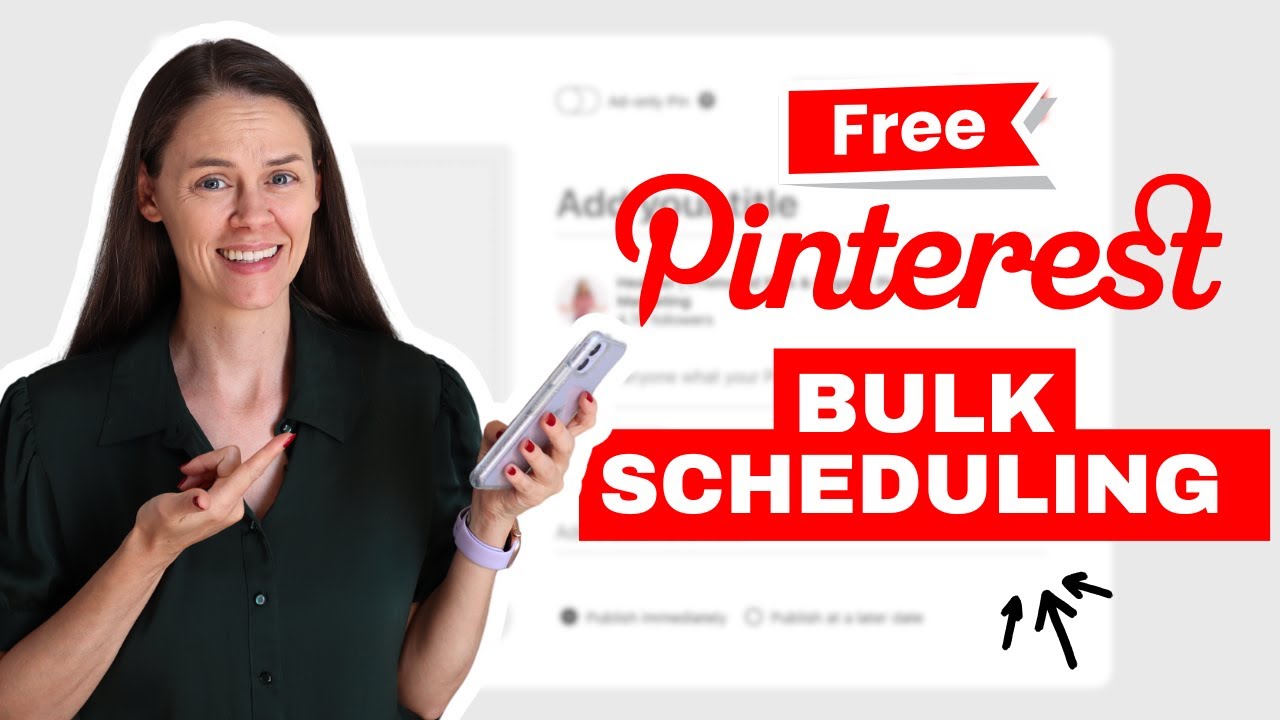
Did you know that you can bulk schedule pins on Pinterest with a CSV file for free? Well, you know how I like Pinterest schedulers—so I of course had to cover this scheduling tool as well in today’s post.
If you prefer spreadsheets and don’t want to mess with extra tools, this may work well for you. I’ll walk through the process, then cover extra things to know as well.
Have your sheet for the CSV process
To get started with how to bulk schedule pins on Pinterest, with this kind of the backend bulk uploading method, you will need an optimized spreadsheet to work with. Now, I’ve built this spreadsheet for this example, and I’ve placed it in my Free Resource Library if you just want to go and download it for free. It’s a great way to get started faster with this.

RELATED: Speed Up Your Business Growth With a Library of Pinterest Templates, Strategy Guides & More
Keep your images publicly available
First thing, you have to start with your content images already uploaded to your website. This is something that’s going to be really important for you, whether you’re on Shopify, WooCommerce, Squarespace, WordPress, etc. The actual Pinterest pins you’re publishing to their platform need to be publicly available.
So a Google Drive or a Dropbox situation is not going to work, even if you create shared URLs that are for public view. If you need to create a burner website to hold them, because you don’t have blogs, that works. I already upload all my images to my website and they are located inside of my blog posts. Which is what I recommend you do in your content strategy to make full use of your platform and content anyway.
RELATED: 3 Content Management Systems You Need For Your Content Marketing Strategy
Getting the image URLs for your CSV file
If you don’t have all your images embedded in blogs that’s fine, you can just go to your media library and bulk upload the images for your pins. For example in WordPress, all you need to do is open the images up and click “Copy URL to clipboard”. These links will work to bulk schedule pins on Pinterest just fine.

Or, if you go to the public view of the blog post itself, right-click the image you want and “Copy Image Address.” Both of those methods will allow you to get the media URL you’ll need.
RELATED: The Best Pinterest & Social Sharing Plugins for WordPress
Filling out the CSV file columns
Pinterest has best practices exact instructions and guidelines on how to best format your file so that there aren’t technical issues with uploading your pins. The bulk upload spreadsheet I’ve created for you is preset, but you must follow the details for what you enter as well.

Most of the details are simple and self explanatory, but I’ll touch on them. The ones to make sure you get exact are the ‘Board Title’ and ‘Publish Date’ columns. If you have any issues when you go to bulk schedule pins on Pinterest this way, review their guidelines again in case they may have shifted since publication of this post.
RELATED: How to Schedule Pinterest Pins With an RSS Feed
Board titles column formatting
If you don’t have board sections, then you can ignore this. But if you have a section you want your pin to go more specifically, you have to have a slash spaced just right. If that board section doesn’t exist, it will be created upon posting.
The chart on the Pinterest guidelines page shows exact examples. My free spreadsheet also has examples for you as you fill it in.

RELATED: How to Create Pinterest Board Sections: When & Why to Use Them
Thumbnails for video pins
Now the thumbnail column is only if you are uploading a video pin to the bulk uploader to Pinterest. This is what seconds into the video do you want the thumbnail to be. Or you can specify an image URL if you want a static image as the cover. If it’s not a video pin, then the column can stay blank.

Formatting the date for publication
If you do want to do a specific time of the day, you do have to put that in there. So it needs to be year-month-day and then the UTC time for the hour published.
If you’re setting up some brand new boards, or you have a fresh profile, leaving the ‘Publish date’ column blank will publish your pins immediately when you upload the file.

Additional fields: title, description, link, and keywords
You’re going to write a pin title and pin description. You can use my PinBot in ChatGPT for that, you can use Tailwind Ghostwriter, write it on your own, whatever you want.

ChatGPT Marketing Prompt Swipe File
Speed up your content workflow with our customized plug-n-play marketing prompts for ChatGPT.
Our ChatGPT prompts will help you define your customer persona, design your customer journey, build a social media calendar, and create both long form and short form content.
The link is the link to the blog post or the product listing that your pin is going to link to for viewers to click through to. The keywords is a comma-separated list of keywords, or search terms, that are relevant to your pin, and then you just place them in there. Don’t forget these, they’re vital.
RELATED: How to Use Keywords to Optimize Your Pins on Pinterest
Uploading the CSV to Pinterest
Once your sheet is all done, all you need to do now is download it as a CSV file. So go to File > Download > CSV.

But this works a bit different than other Pinterest approved schedulers, follow these steps. Go into your Pinterest account settings by clicking your carrot in the upper right corner, drop that down and go to “Settings” and then choose “Bulk Create Pins” on the left.
This is the CSV file location where you’re going to upload your file. You’re going to drop it in, and it will say “Upload successful. The file was uploaded and your pins are being created.”
This can take up to 2 hours depending on how large your file is. If there’s an issue creating your pins, you’ll be notified by email, and likely in your notifications right in Pinterest too.
Once those pins are created and published to the profile, they will appear here on your “Created” tab. Anything scheduled will show in the “Scheduled” section too. And that is it.
RELATED: Schedule Your Pins for FREE using the Native Pinterest Scheduler
Optional: Using an RSS feed
Also inside of your settings in “Bulk Create Pins,” you can connect an RSS feed, another one of the different ways to do this, where it’ll auto-publish images from your domain. Then the next time you publish a new blog post, it’ll publish the images from that domain from all live blog content. Once it’s connected to, any content you have already live will bulk schedule pins on Pinterest immediately as well.
Now, I am a stickler with making sure that my Pinterest pins are properly optimized for the platform, so I don’t use the RSS feed option. But I did want to mention it because that’s also a way to bulk upload pins if you have lots of content published already. Come join our membership Pin Profit Academy to learn everything I recommend for your entire Pinterest marketing strategy and process.
RELATED: How to Schedule Pinterest Pins With an RSS Feed
Pin Profit Academy
Marketing can be difficult and trying to figure it out on your own, especially with Pinterest, can be overwhelming.
I will show you how to double your traffic and sales without spending another minute on social media!
PPA is the only comprehensive membership program & community for creating, marketing & selling your products & services using Pinterest.
Final thoughts on how to bulk schedule pins on Pinterest
Last thing, now that you know how to bulk schedule pins on Pinterest via the CSV uploader inside of your Pinterest settings, you now need to maintain everything with your Pinterest strategy marketing plan.
For that, you need to head right on over here and go through my Pinterest Marketing Strategy video tutorial playlist on YouTube. See you there!
Pin it for later


Heather Farris went to school for accounting and worked for years in banking and finance. After finding all of that entirely too boring she started her first blog in her basement in August of 2016. She has started 3 blogs in the marketing, motherhood and travel niches and used Pinterest to grow them all. She quickly became the go-to Pinterest strategist in her peer circles and has been implementing strategies, driving traffic and sales through organic and paid tactics for her clients. On this blog and her YouTube channel, as a renowned Pinterest marketing expert, she educates the public about clear and transparent marketing strategies to help them to grow on Pinterest and in other places online. She created Pin Profit Academy and helps small business owners just like you to master their Pinterest marketing strategy. Heather is now a Pinterest Educator, one of the very few sponsored by Pinterest.