


How to Schedule Your Pinterest Pins With the Canva Content Planner
Are you looking for a semi-free way to schedule your Pinterest pins without a complicated scheduling tool? Well, today’s tutorial on the Canva Content Planner is just for you, especially if you are a Canva Pro user. This is integrated right into your Canva designer so you save lots of uploading and downloading to somewhere else.
In this post, I will show you the quick and dirty tutorial on scheduling your Pinterest pins using the integrated scheduling system with Canva. Canva is an approved Pinterest partner and I use it every single day, so it’s highly recommended.
What is the Canva content planner?
When it comes to content marketing tools, many people don’t realize Canva offers this option. It’s definitely a great addition for those who don’t want to pay extra for schedulers. You’re likely already paying for Canva, and this comes with your Canva Pro account.
Canva content planner is a new feature that helps you schedule your images for social media directly from Canva, right after you’ve designed them. This feature is only available if you are subscribed to Canva Pro or Canva Enterprise. The total social networks it currently supports include:
- LinkedIn Profile or Page
- Slack
- Tumblr
- Facebook Page or Group
- TikTok
- Facebook Story
Let me now walk you through a couple of pros and cons of the Canva content planner.
RELATED: How to Create Pins for Pinterest in Canva: An Image Workflow to Save Time
Canva content planner pros
If you are paying for Canva Pro, you can essentially schedule any and as many Pinterest Pin as you want for free. You can use this feature for no extra cost.
The second advantage of using Canva Pro is how easy it is to optimize your content for Pinterest. They literally make you choose a board, put your title, your description, your URL and then select a date and a time, and you’re done. There is nothing complicated about this.
Another advantage I already stated, you don’t have to download your pin designs and upload them into a different area either. I love this aspect.
RELATED: Why Create Fresh Pins for Pinterest Using Canva
Canva content planner cons
You can only schedule one design at a time. This means you cannot create a series of designs in one file and expect to schedule them all. It just doesn’t work.
Once you schedule your post, you cannot edit the file, or it will knock your schedule out of rotation. This means that once the pin is scheduled, you can’t do anything with that file until it publishes. So if you happen to click into that file and edit anything once that file is scheduled, it’s going to give you an indication that you’re going to mess things up.
RELATED: 10 Canva Hacks to Save You Time When Making Pinterest Pins
How to schedule Pinterest pins with Canva
Scheduling your Pinterest pins with Canva is relatively simple. Before we go through the whole process, you need to have your design already made, a Pinterest pin you’re ready to schedule, we’re not going to go through that step.
You also need a Canva Pro account, the free version does not include this. So first we’ll have you connect your Pinterest account to Canva so they’re linked.
1. Connect your Pinterest account to Canva
The very first thing that you need to do is connect your Canva account to your Pinterest account. From your design click ‘Share’ > then search ‘Pinterest’ > select the Pinterest icon > and then you’ll have to scroll down a little to see the ‘Connect to Pinterest’ button.
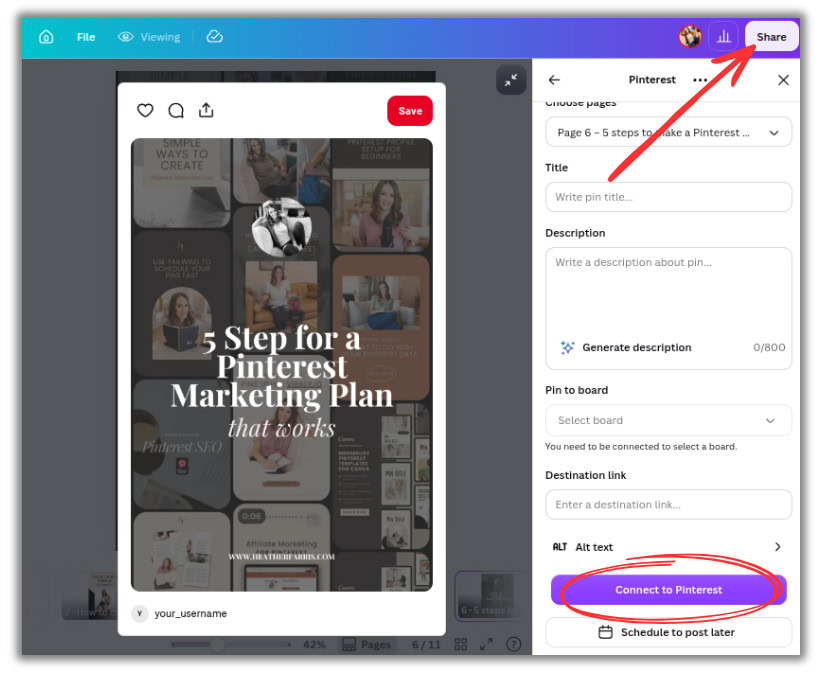
When you connect it to Canva, you must make sure you’re logged into the correct Pinterest account. Otherwise, it will try to pin and schedule the wrong account. If you’re a Pinterest manager like me and have multiple logins to access, make sure you are logged into the correct one first.
Then just click that button and you should be good to go. It may ask you to enter your login information again. But if you’re already signed in on the same browser, it should sync automatically.
RELATED: How to Batch Create Pinterest Pins for a Month Using Canva
Caveat on separating your pins
Once you have your account connected, I want you to know this before you start scheduling your pins. If you’re like me, you like to create all the pins for a week or a promo schedule in one single file. But the problem is that if you go to edit one of them later, Canva will give you a little alert.
On one of my previously scheduled designs, it says ‘post paused’ because I went in and edited that file the last time I tried to do this tutorial. It will pause a post anytime you edit a file with multiple designs in it.
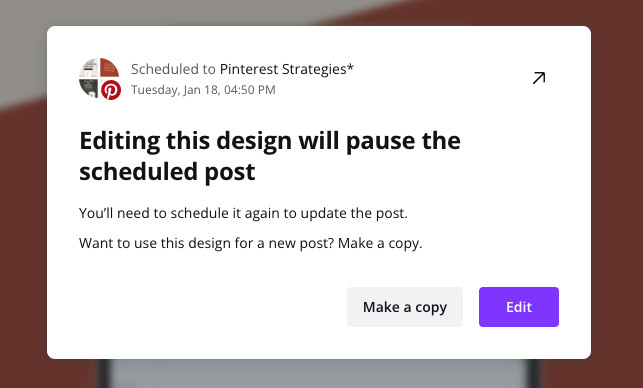
So you cannot schedule more than one of those at a time. Nor can you make any edits to that design file after that. You will have to go and make each individual pin its own file in order to schedule it properly. This way, you don’t mess up your other work or have to deal with this issue that will take much longer to work around.
I wanted to make sure that you understood that before you really dive into this because you will end up frustrated like I was when I first tried to do this. So with your bulk scheduling, or say you’re doing a week or month’s worth of pins at once, you can put those into a single file to keep track of them easier.
RELATED: How To Use Canva Bulk Create With ChatGPT To Speed Up Your Pin Designs
2. Scheduling your pins
Once you have your Pinterest account connected, all you have to do is click ‘Share’ > ‘Publish’ in the right-hand corner of the screen and choose your publishing date. Then you just select your board it’s pinned to, and enter all of your pin data (title, description, URL).
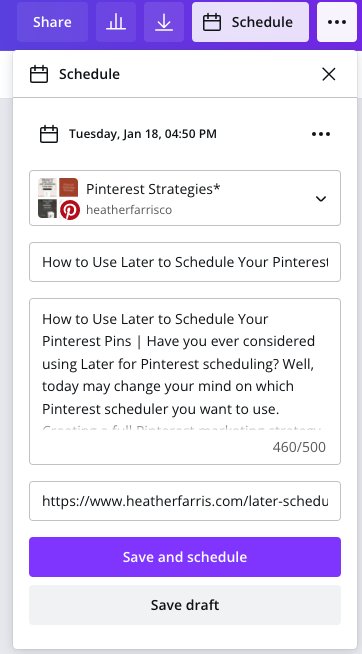
I would suggest having all of your text written before hand so you can just copy and paste right into the scheduler faster, especially for bulk. You can use a spreadsheet or doc, or my Pinterest System that includes everything for creating and scheduling your pins.
Whatever you want to do to track all of that is entirely up to you. Then after you have pasted everything in and set, just click ‘Save and schedule’.

The Pinterest System
Speed up your client management processes and personal Pinterest marketing strategy with every content workflow and tracking system you need.
Track and manage your content, links, data analytics, keyword research and more! No more wasted time in your product or service business because you’ll have everything you need.
Tip on checking your analytics
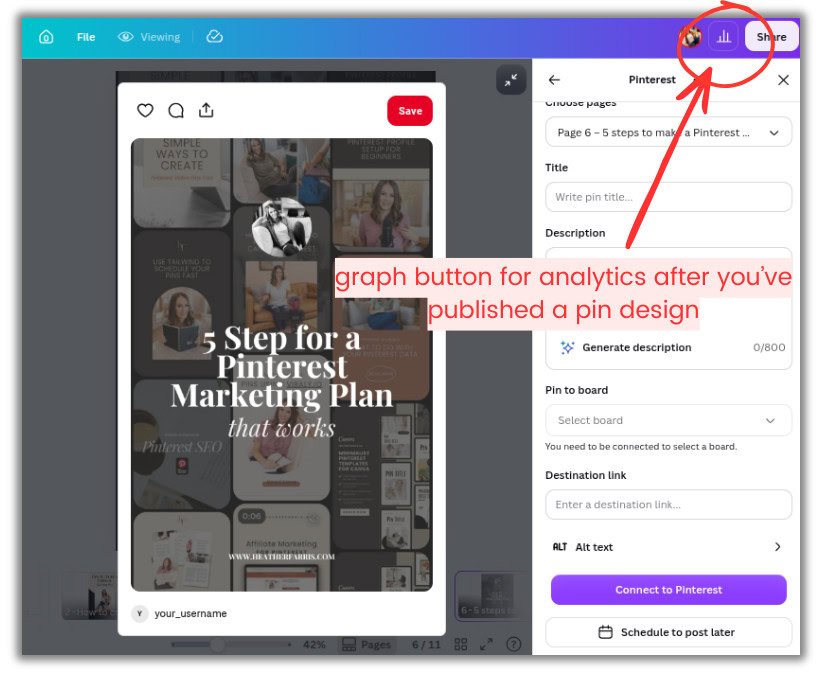
One of the latest features Canva introduced with scheduling is seeing your analytics if you’ve published with their platform. Pay attention to that tool in the upper right-hand corner next to the share button. You’ll see a little graph indicator where you can see stats based on what happened with that pin once it was published.
Check on your scheduled content
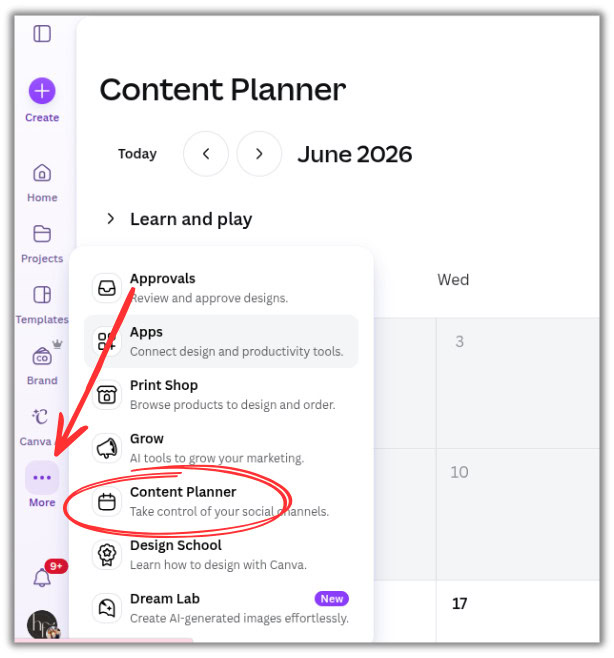
If you need to go back and edit or review what’s scheduled, just click on ‘More’ in the left menu > then ‘Content planner’. From here you can see scheduled, published, and draft posts as expected.
Final thoughts on scheduling pins with the Canva Content Planner
The Canva content planner is a semi-free solution that lets you schedule as many Pinterest pins as you want directly from Canva. By scheduling your pins in advance, you can maintain a consistent posting schedule without the hassle of downloading designs, or paying for an expensive third-party scheduler. Give it a try!
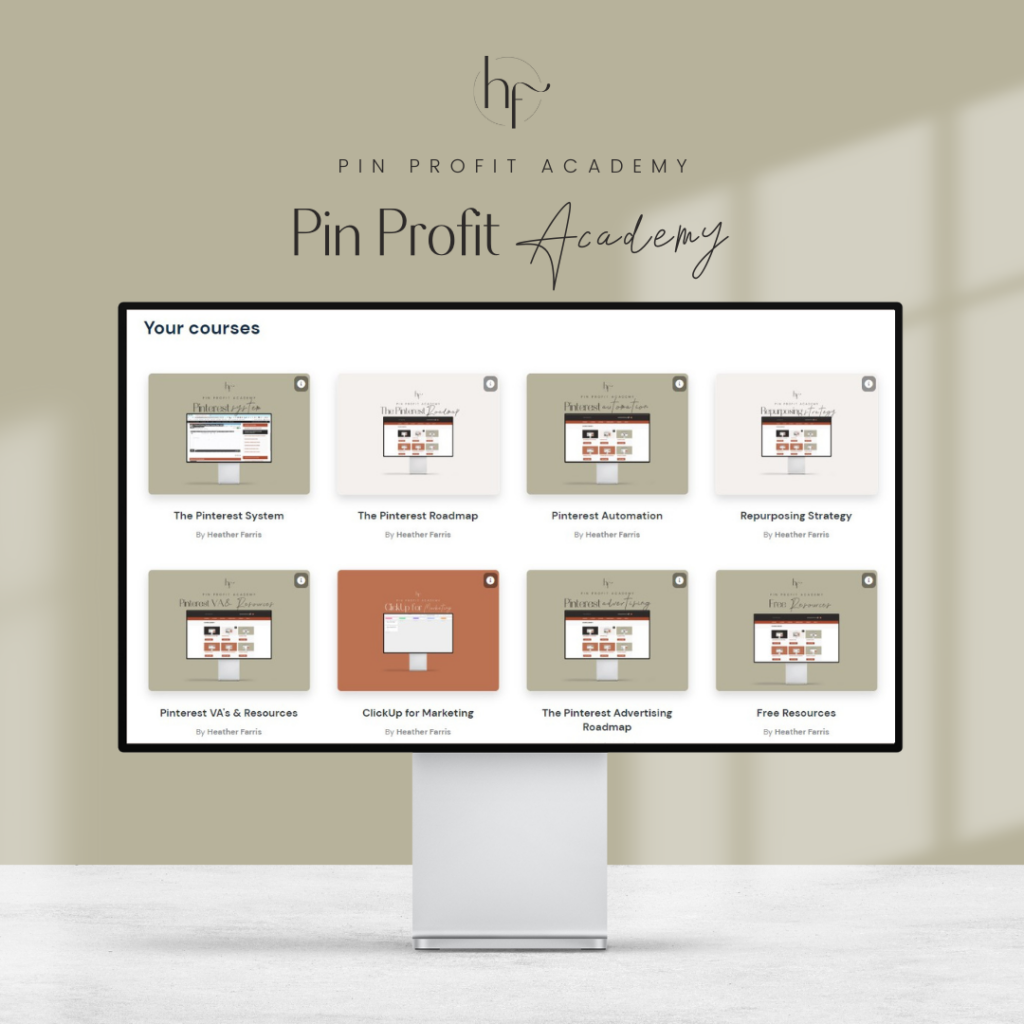
Ready to take your Pinterest strategy further? Join Pin Profit Academy and discover proven strategies to convert followers into customers and create a sustainable Pinterest marketing system that actually works. See you inside!
Pin Profit Academy
Marketing can be difficult and trying to figure it out on your own, especially with Pinterest, can be overwhelming.
I will show you how to double your traffic and sales without spending another minute on social media!
PPA is the only comprehensive membership program & community for creating, marketing & selling your products & services using Pinterest.
Pin it for later

Heather Farris went to school for accounting and worked for years in banking and finance. After finding all of that entirely too boring she started her first blog in her basement in August of 2016. She has started 3 blogs in the marketing, motherhood and travel niches and used Pinterest to grow them all. She quickly became the go-to Pinterest strategist in her peer circles and has been implementing strategies, driving traffic and sales through organic and paid tactics for her clients. On this blog and her YouTube channel, as a renowned Pinterest marketing expert, she educates the public about clear and transparent marketing strategies to help them to grow on Pinterest and in other places online. She created Pin Profit Academy and helps small business owners just like you to master their Pinterest marketing strategy. Heather is now a Pinterest Educator, one of the very few sponsored by Pinterest.




This was extremely helpful. Thank you!
Thankyou- I am curious what your click up Pinterest board looks like, I did not understand that part, Pleasee share