

How to Schedule Pinterest Pins With an RSS Feed
Did you know that you can schedule Pinterest pins with an RSS feed inside of your Pinterest settings? There are two main ways that you can actually bulk upload content to Pinterest and one of them is the RSS feed.
I’ve previously covered how to do this using a CSV file as well, so if you wanna watch that video, you can definitely go back there. That’s actually our preferred method, but having an RSS feed may be your preferred option too, so here goes!
Now, my name is Heather Farris. I’m a Pinterest marketing educator and strategist. I own a Pinterest agency, an education company, and I have been doing this work for nine years. And in the process I get a lot of questions about features that sometimes are not really as common, which is where this topic comes from—RSS feeds, lately my biggest question.
In today’s post, I’ll go through the pros and the cons of this process, best practices, how to set it up the first time, and even talk you through the different tools that you can use to achieve this method of scheduling to your Pinterest account.
Starting with RSS Feeds
You can schedule Pinterest pins with an RSS feed, but not a lot of people know how to do this because it’s different than a regular scheduling tool. Now, I’m going to tell you right off the bat, this is not my favorite way to publish content. But I have had some people come to me and ask if they can use RSS feeds and how to do it, so I wanted to show you how in case you’re the same.
A couple of things to keep in mind, most RSS feed generators that are free are going to limit you to a number of RSS feed URLs. So you can do this the manual way, or you can do this with an app. I have a few resources for you.
RELATED: Schedule Your Pins for FREE using the new Native Pinterest Scheduler
WordPress & RSS Plugins
Number one, if you are on WordPress, which most people are, this WPBeginner article is actually fantastic: Nine Best WordPress RSS feeds for 2025. This article starts just with some basic research and helps you figure out a great way to setup exactly what you need for your website.
- Do you need an RRS feed for products?
- Do you want to use it for podcasts?
- Are you figuring it out for your blogs?
Then, once you have figured out that part, you can begin adding plugins to your WordPress site. Follow the links from that article for any plugins you may want to try, and set up whichever you choose inside your WordPress dashboard.
RELATED: The Best Pinterest & Social Sharing Plugins for WordPress
Free RSS Tools
Now today what I’m gonna show you is two different ways to get the feed links you need from free tools.
- RSS.app
- XML sitemaps
RSS.app
The first one is RSS.app. This one will start at a basic fee if you want to have a paid plan with multiple feeds. So you get 15 feeds within the basic plan: $8 a month if you pay annually, or $9.99 if you pay monthly. With the free plan, you get two feeds at a 24 hour refresh rate.

I don’t see why anyone would actually want to pay for an RSS feed tool when you can publish pins to Pinterest for free in other ways. But I have people asking for this, so this is what we’re gonna review.
XML Sitemaps
Then there’s My Sitemap Generator. Now RSS feeds are built on XML sitemaps. So you need a map in order to import into Pinterest what information to pull from your site and publish as pins. You don’t have to have a paid version. It will generate a map for you that you can download and we’ll take to Pinterest.

Setting Up an RSS Feed with Pinterest
With my blog I have different categories for my content. Now the way that the RSS feed works on Pinterest is you can actually set up more than one feed. So if you have, say, five categories on your website and you want blog pins to go from each of those categories to a different board each time. Then you can create multiple RSS feed URLs and those pins will then go to those boards that you select. So let me show you how to do it.
RELATED: The Ultimate Pinterest Traffic Strategy for Bloggers & E-Commerce Shops
RSS Feed Settings
Have your blog URL ready, or your blog category URL that you want to create a feed for. Make sure you’re logged into the correct Pinterest account before starting.
- Go to pinterest.com/settings/.
- In the left menu, go to ‘Bulk Create Pins’.
- Scroll down to ‘Auto Publish’.
- Click ‘Connect RSS Feed’.
- Input your source URL where the feed will pull from.
- Select the board to pin to.
- Click ‘Create’.

RSS Board Title
I have made this RSS Feed board for this example, but you’re going to name your board something way better. Your board is not going to have the name RSS Feed in it. It’s going to be specific to your content and topic with your keyword strategy.

Make sure you’ve done your keyword research and have your boards optimized with that. After I post this blog, this RSS Feed board is going to be archived because it’s only for this example. Yours will live on permanently in your profile.
RELATED: The Ultimate Guide to Create Your Pinterest Board Strategy
Authenticating your RSS Feed URL
If you get an error that says the feed can’t be fetched, you have the wrong link. Make sure that you use the proper link that your XML Sitemaps or RSS.app generated for you. It’s NOT going to be your native blog category link.
Then once your content gets published, the feed will fetch it and pin it to your board you’ve identified. Come back often to check it and make sure it’s working properly. Depending on what feed provider you use, you can often publish up to 200 pieces of content per day, though you certainly don’t need to pin that many at all.
How to schedule Pinterest pins with an RSS feed
Pinterest says, when your RSS feed updates, your content will be added to the board within 24 hours. Each feed can publish to different boards, and then you can add as many RSS feeds as you want, as long as they match your claimed websites.
The oldest content on your RSS feed is published first. If you’ve already got a lot of published blogs, it will pull those first, not just from what is published new from that time forward. And as your feed is updated, pins will continue to be made on a daily schedule. So no technical dates or times, but the blog publication trigger causes the scheduling.
RELATED: I Tested Different Pinterest-Approved Schedulers So You Don’t Have To
Optimizing for a clean and successful feed
Here are a few different things that you need to pay attention to if you want this to work for you well, instead of just spamming your stuff with little gain. If you are only importing blog posts, then let’s make sure that the blog post is optimized for the platform and the RSS feed.
- Pin title
- Pin description
- Image size
- SEO keywords
So if you have images inside of the blogs, then make sure those images have titles and descriptions with optimized keywords.
Image size issues
What the RSS feed will do most often is pull the featured image out of the blog. At least that’s what I’ve been noticing here in my own feed — it’s pulling all of the featured images for those blog posts and it’s not actually pulling anything else in, such as my Pinterest pin images inside of all my blog posts. .
So one way around this is to make sure that your featured image size on your blog post is actually a Pinterest image in size, 1000×1500, or more vertical than horizontal. No little thing, getting the correct image is one of the main reasons to do this at all.

Minimalist Pinterest Templates for Canva
If you want traffic don’t rely on something just whipped up! Speed up your pin creation by using templates to get more pins out faster and more often.
These Pinterest templates are great for video content or blog posts & are ready to go. You can start creating pins on Pinterest in minutes.
SEO keywords
Another thing that you can do is make sure that you’re using your Pinterest SEO keywords on all of the images on your website. That way when they do pull over to Pinterest, they are able to be indexed and found by Pinterest easier in the feed..
RELATED: A Step-by-Step Guide to Pinterest SEO Strategies to Boost Traffic
Final thoughts on how to schedule Pinterest pins with an RSS feed
And that’s it. That’s how you schedule Pinterest pins with an RSS feed. It’s really very simple.
Please let me know if you have any questions. There’s plenty of other methods for getting your content onto Pinterest and my YouTube playlist here shows all the other publishing methods including:
- third party schedulers,
- how to schedule your pins for free,
- even using the CSV method that I talked about earlier.
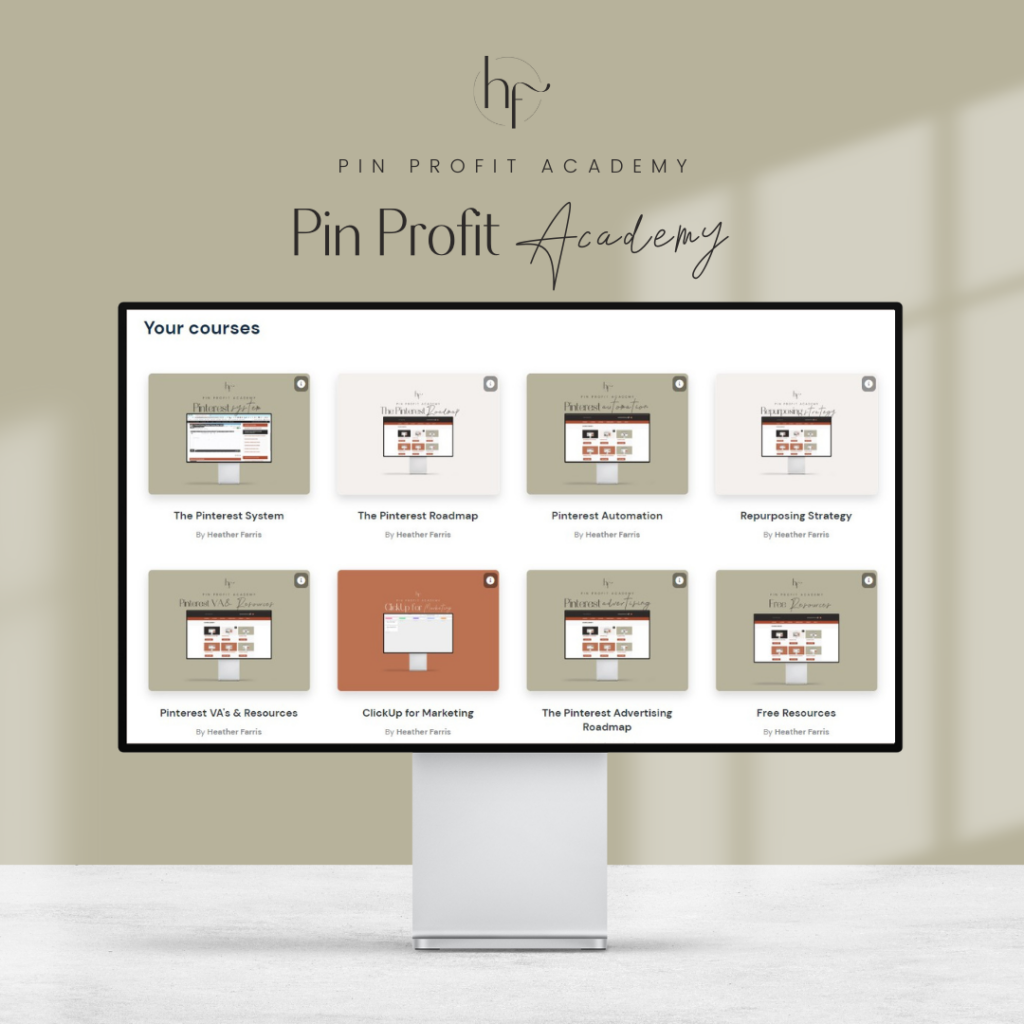
In the meantime, if you need more help and support with your Pinterest marketing strategy, you should definitely join us in Pin Profit Academy because that’s a great place where all the magic happens with me. Okay? See you there.
Pin Profit Academy
Marketing can be difficult and trying to figure it out on your own, especially with Pinterest, can be overwhelming.
I will show you how to double your traffic and sales without spending another minute on social media!
PPA is the only comprehensive membership program & community for creating, marketing & selling your products & services using Pinterest.
Pin it for later


Heather Farris went to school for accounting and worked for years in banking and finance. After finding all of that entirely too boring she started her first blog in her basement in August of 2016. She has started 3 blogs in the marketing, motherhood and travel niches and used Pinterest to grow them all. She quickly became the go-to Pinterest strategist in her peer circles and has been implementing strategies, driving traffic and sales through organic and paid tactics for her clients. On this blog and her YouTube channel, as a renowned Pinterest marketing expert, she educates the public about clear and transparent marketing strategies to help them to grow on Pinterest and in other places online. She created Pin Profit Academy and helps small business owners just like you to master their Pinterest marketing strategy. Heather is now a Pinterest Educator, one of the very few sponsored by Pinterest.