

Major Upgrades With Tailwind for Pinterest Marketing
If you have been using Tailwind for Pinterest, or at least considering it, there are some amazing new features (as of today’s post) that you can be using in your Pinterest marketing strategy. It seems that quite a lot of people are not aware of them, and I don’t want you to miss them!
Today we’re going to cover those seven new things that they have rolled out. They are:
- Keyword tool
- CSV import
- Carousel pins
- Tagged products
- Image refreshing
- Smart schedule settings
- Tailwind Turbo
We’ll cover how they can make your workflow even better, and help you get better results on Pinterest for your small business in a faster timeframe.
RELATED: The Complete Pinterest Marketing Strategy I Tell My Friends
Tailwind for Pinterest: Keyword Tool
The first thing that I want to talk about with using Tailwind for Pinterest, is the keyword tool that they introduced. This is integrated with the API on Pinterest, so you don’t have to worry about the data being wrong. Just click ‘Keywords’ in the left hand menu, and you can search for any keyword here.
So, let’s say you are searching for something related to denim. Pop that little keyword in the search bar and it’s going to tell you the keyword variations, the resonance, the search volume.
If there’s any results that you want to save to a list, you can save them. It will even ask if there is a specific URL you want to have your saved items apply to, you can enter it in the popup.
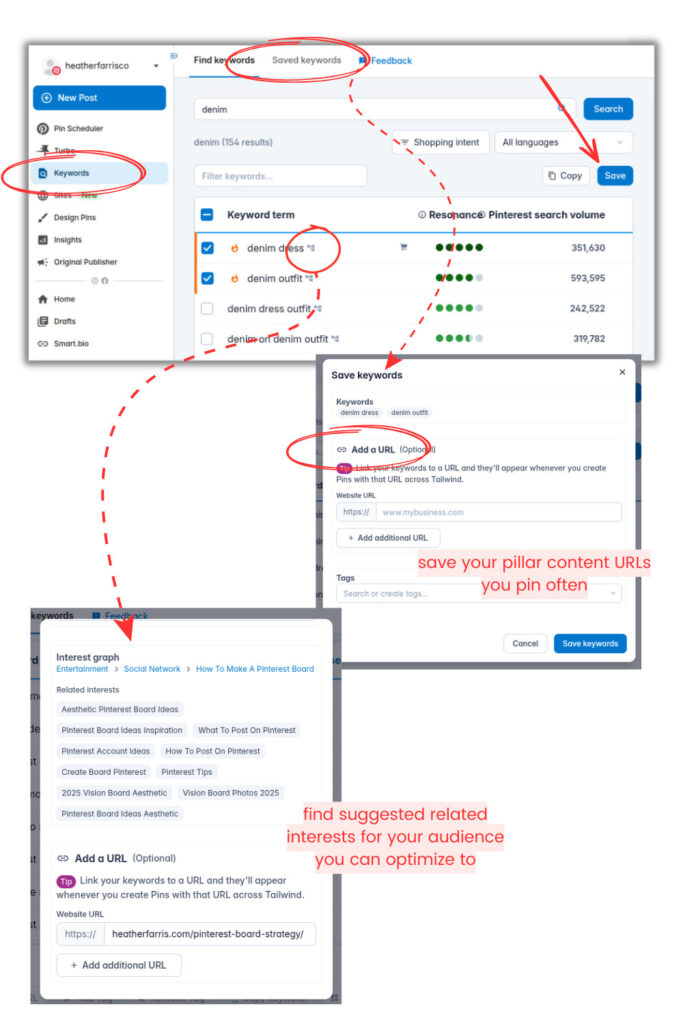
You can click the tiny icon next to the keywords and it will bring up an Interest Graph. These are similar interests of the audiences that search your keywords. Similar or related content topics they’re interested in. These may be analogous for your content and can add to your keyword research and optimization.
RELATED: How to Use Keywords to Optimize Your Pins on Pinterest
New Post Menu and CSV Import
Now, the next thing that I want to show you that’s new inside of Tailwind is a bulk upload option. In the ‘New Post’ menu, there is now an option to upload with a CSV file. I’m not going to go in depth into it because I haven’t used this option and I don’t have anything prepared for it to walk you through.
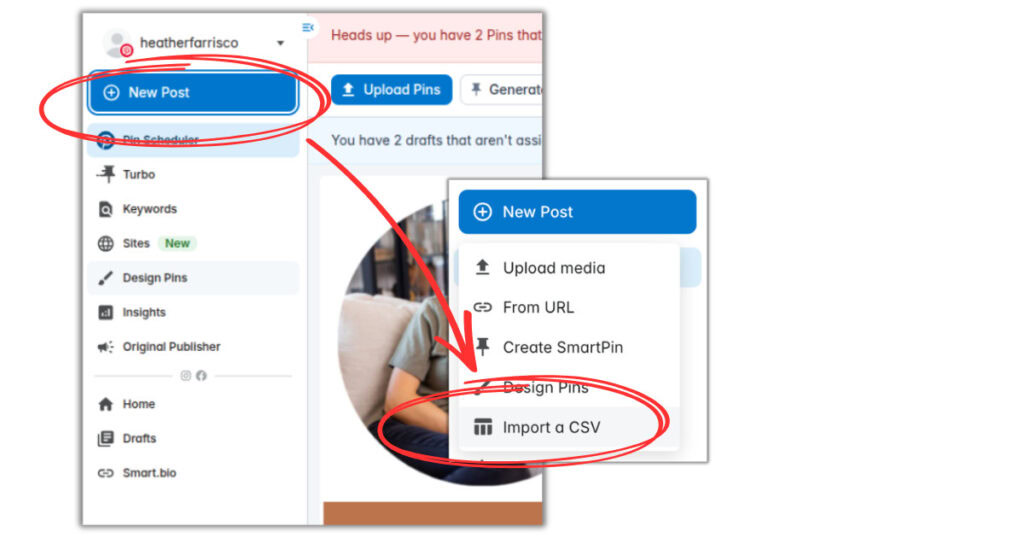
But if your workflow is to bulk create inside a sheet, creating pins and wanting to bulk schedule them inside of Tailwind, you can do it even faster now. So give that a try and let me know how you like it.
RELATED: How To Use Canva Bulk Create With ChatGPT To Speed Up Your Pin Designs
Carousel Pins in Tailwind for Pinterest
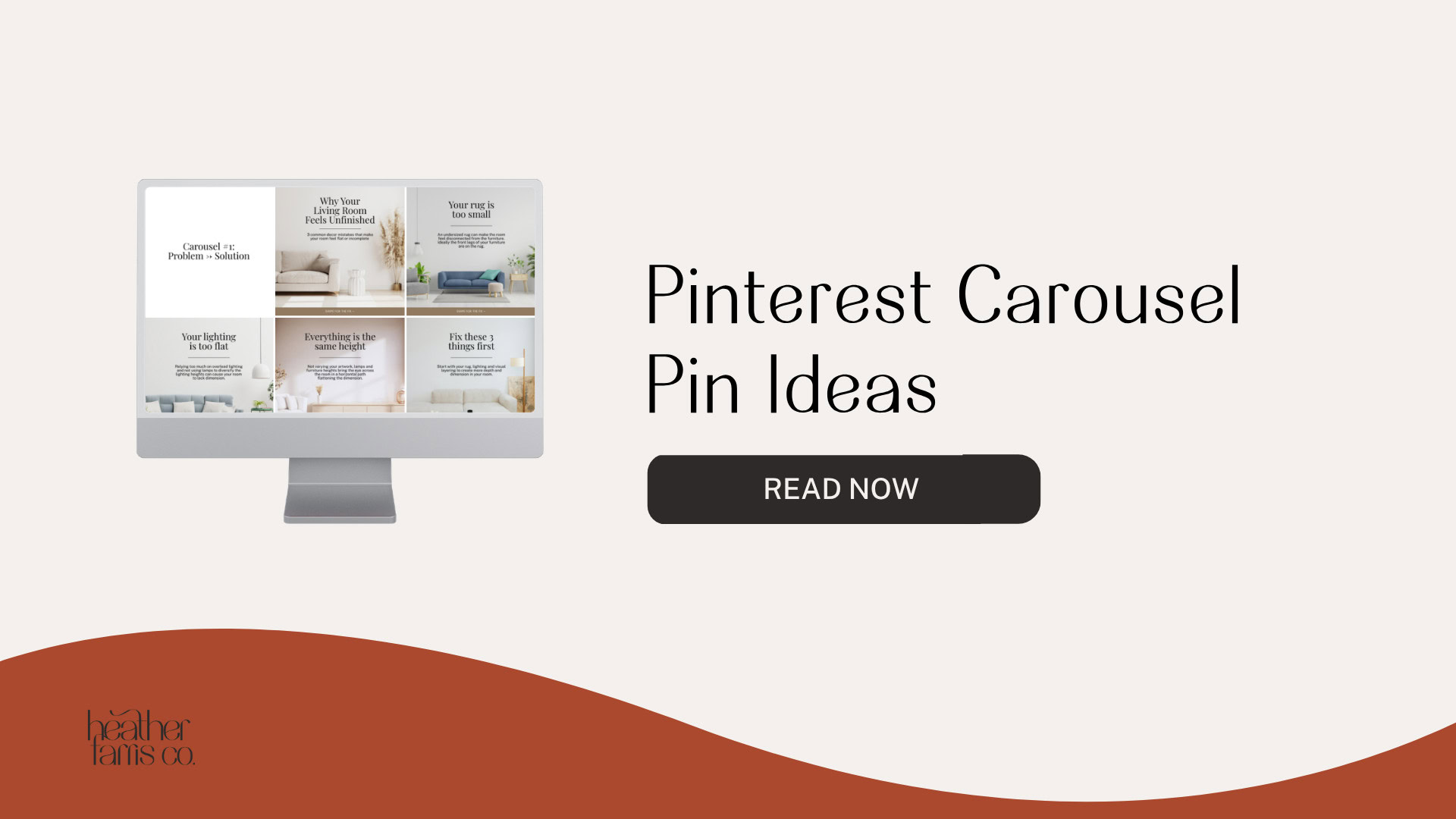
The next thing that I want to talk to you about in using Tailwind for Pinterest, is carousel pins. This year we’ve been able to create carousel pins on Pinterest, then also synced over from Instagram. Now, you can create them with Tailwind as well.
However, there is still some limitation that remains. You only get five pages in a carousel. Even though Instagram allows you 20 pages, keep that in mind that Tailwind and Pinterest can only create five. I’m going to show you exactly what this looks like.
RELATED: How to Make Carousel Pins on Pinterest in 2 Easy Ways
How to Create Carousel Pins in Tailwind
In order to create a carousel pin, have all your images ready to go, to upload all at once. Here’s how to create one using Tailwind for Pinterest.
- Go to the ‘Pinterest Scheduler’ in the left menu.
- Click ‘Upload Pins’ up at the top. (Don’t click ‘New Post’, it’s just confusing.)
- Upload your pin images all at once, don’t worry about the order right now.
- Check the box at the bottom ‘Create as carousel’.
- Click ‘Create Carousel’.
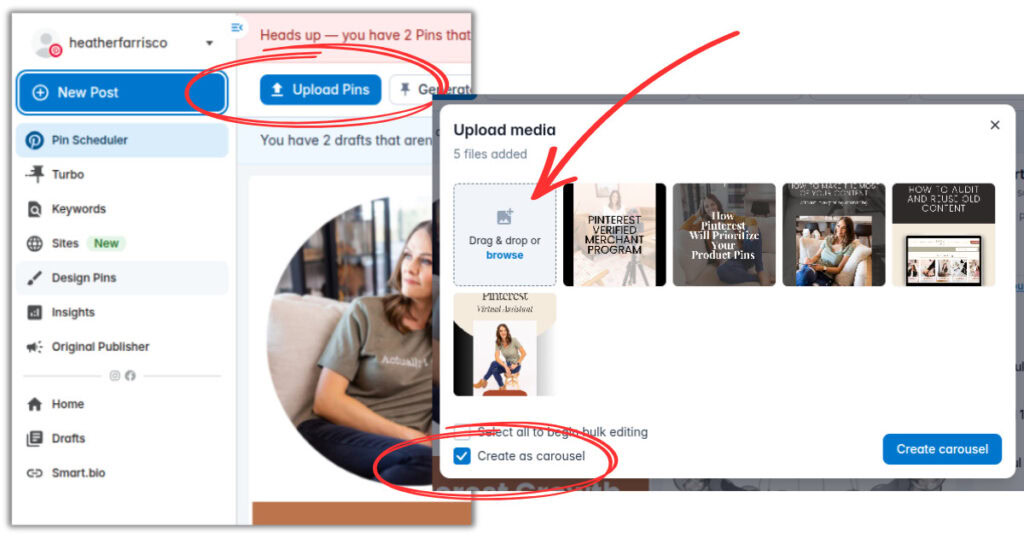
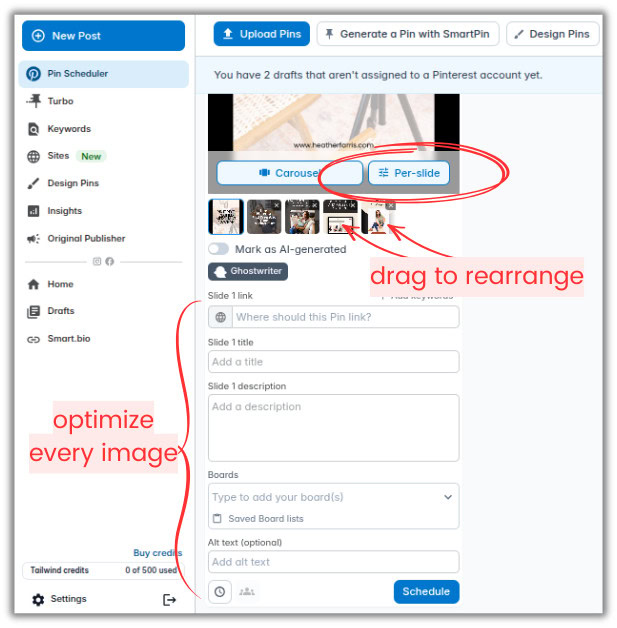
Then it will bring your arousal pin into the ‘Pin Scheduler’ where you can edit them. Click the ‘Per Slide’ option if you want different URLs or titles and descriptions on the different images. Depending on the content and what you’ve created, you may want this.
But it’s not necessary, you can certainly keep the same URL or details for every image. Pinterest does also allow you to do the same thing when you create within their native pin builder. You can also drag and drop the images around for the preferred way you want. Just remember to never leave any of the fields empty so you have a fully optimized set of carousel pins.
RELATED: How to Use Keywords to Optimize Your Pins on Pinterest
How to Import Carousel Pins From Canva
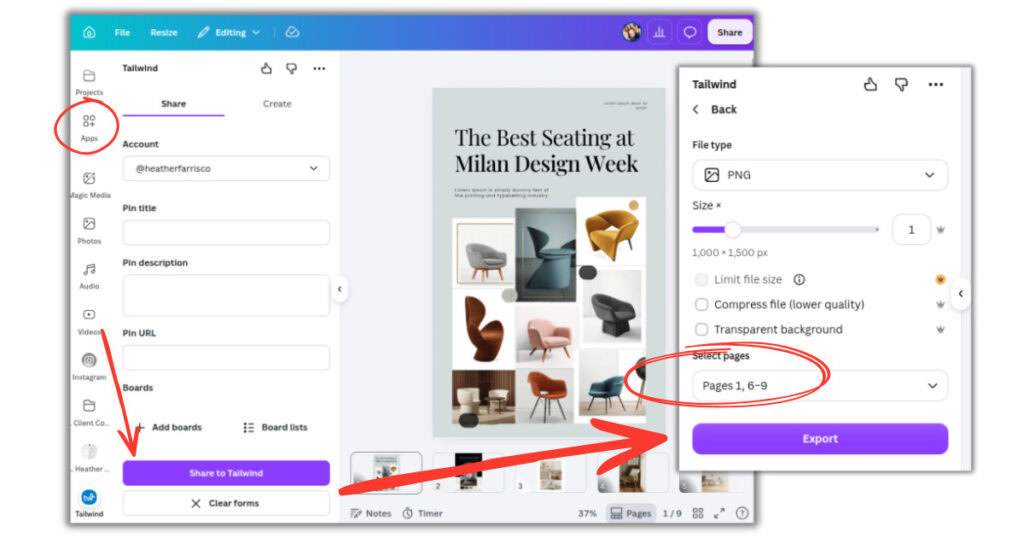
If you design your pins in Canva, and you want to skip a step of uploading them into Tailwind, you can use the app integration between the two. You don’t have to have all your descriptions and keyword data yet, just the images made. But here’s how you can import them right into Canva. Make sure your carousel images are all in one design.
- Open your carousel pin design file in Canva.
- Search in the ‘Apps’ in the left hand menu for Tailwind. (If you haven’t previously connected it, you’ll be prompted to login.)
- Make sure it has the correct Tailwind account selected at the top, in case you have multiple.
- Click ‘Share to Tailwind’, and don’t worry about the other empty fields, you can fill them in inside of Tailwind.
- It will bring up another window where you can select the pages (images) to import over to your carousel pin.
- Click ‘Export’.
Then you can go over to your Tailwind drafts, refresh the page, and you’ll see your images as separate drafts.
RELATED: How to Use the NEW Tailwind Integration with Canva Batch Editing for Fast Pin Creation
How to Merge Pin Drafts Into A Carousel
Now, yes, you may be thinking why do the import if the pin images aren’t drafted into a joined carousel. How do we fix that? Just remember that even if you’re not making carousel pins, this import connection can help you streamline, say all your pins for a week or month, if you’re importing them all at once with bulk editing.
But yes, we can merge these individual pin drafts into a single carousel as well in Tailwind. Really easy too.
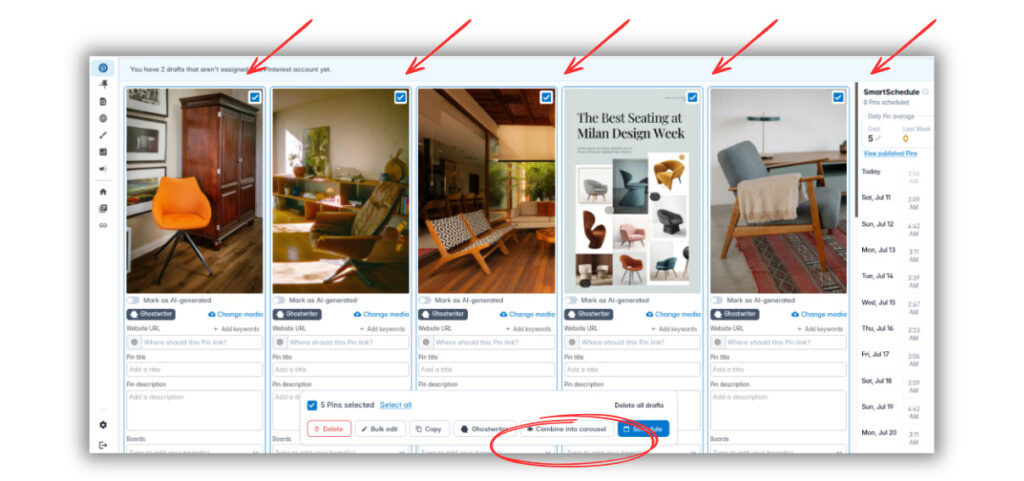
- Inside your Tailwind ‘Pin Scheduler’, click on each of your drafts that you want merged to a carousel pin. **Make sure to click the cover image you want displayed first.
- At the bottom of the screen, click ‘Combine into carousel’.
It will have a popup while it’s working, just letting you know the previous individual pin drafts won’t remain. Then you can go in and add all your info to optimize and schedule your pins like before.
RELATED: How to Use Tailwind Ghostwriter For E-commerce Shop Product Descriptions
Tagged Products in Pins
So, let’s talk about tagged products now. This allows you to link right to your products in your store that’s connected to Pinterest. Say you have a product in your pin, you can link directly to it. This is in addition to the URL destination you set for the pin.
What this does not allow you to do is tag affiliate products. Affiliate stores cannot be verified merchants on Pinterest. You can use affiliate links in the URL destination, but not in the product tags. And now Tailwind has this same functionality embedded just like Pinterest. To add product tags in Tailwind for Pinterest:
- Hover over your pin to see the ‘Tag products’ option pop up, click that.
- Search for the products you want to tag on the pin.
- Select the products you want to tag, and click ‘Save’.
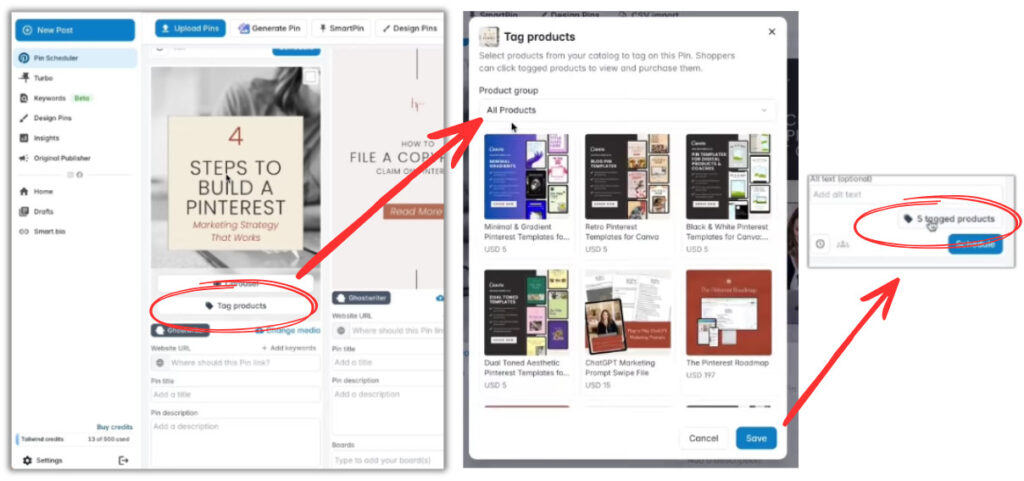
If you need to adjust them, you can click the ‘X Tagged products’ button that will then show up at the bottom of your pin. The same menu will open back up and you can adjust however.
RELATED: How to Tag Products on Pinterest and Make Money With Your Pins
Tailwind for Pinterest: Image Refresh
The next feature I want to talk to you about is called Image Refresh. This is a tool that Pinterest engineered because a lot of people were asking for it. This allows you to pin the same pin to multiple boards without them appearing as duplicates.
Say you have multiple boards with similar topics, and a great pin that could go on any of those boards. But pinning the same pin to multiple boards isn’t preferred. I know you still can, especially in Tailwind with the boards lists option. But Pinterest doesn’t love duplicate pins, especially within your own account, looks spammy.
So Image Refresh allows that one pin to publish to multiple boards, but they are seen as new individual pins. Image Refresh says it adds a small, imperceptible change to each pin, and Pinterest detects this as an entirely new pin. However, it’s not available to video pins, FYI. Here’s how to turn this setting on:
- At the bottom of your pin draft, add the multiple boards or board list you want.
- Then click the ‘Interval’ button down below.
- Toggle on the ‘Image Refresh’ option in the pop up window.
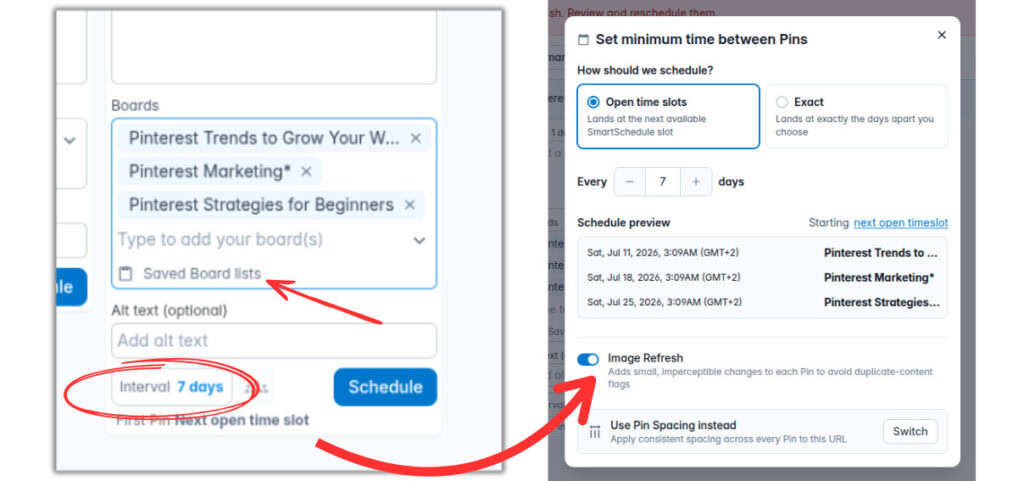
If you don’t use the default time slot queue, but you switch to ‘Use Pin Spacing Instead’, the ‘Image Refresh’ option disappears. So I don’t believe you can use it if you’re selecting that. Just to be safe, use either scheduling interval at the top of ‘Open time slots’ or ‘Exact’ in order to ensure the Image Refresh sticks.
RELATED: I Tested Pinterest Approved Schedulers So You Don’t Have To
Smart Schedule Settings
I want to talk to you about the settings inside of your smart schedule menu. There used to be only a few settings here. Now you have ‘Unschedule pins to drafts’ and ‘Bulk delete pins’. You can use any of these features in a number of different ways.
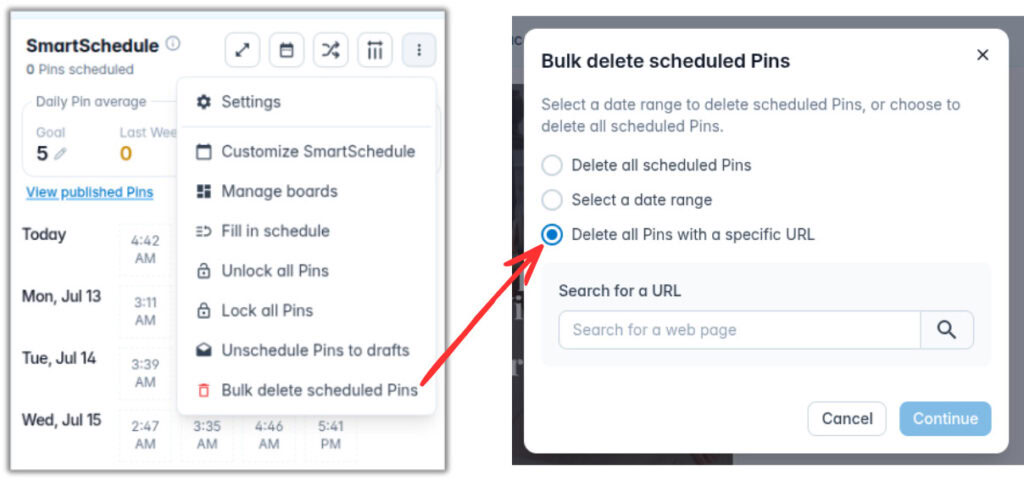
With ‘Unscheduled pins to drafts’, if you click that, it’s going to move everything out of your scheduled queue and back into your drafts. Say you’ve done a branding update or a client is changing their entire promo you’ve already worked on, this can move things back faster for the edits you need to make.
Then if you click ‘Bulk delete scheduled pins’, you’re going to see three options:
- Delete all scheduled pins
- Select a date range (to delete)
- Delete all pins with a specific URL
I cannot tell you as a Pinterest manager how excited this makes me when I found this last option. I entered my home page URL of just heatherfarris.com and a few pins popped up that were not optimized, or planned. Yet they had somehow synced into my queue. I didn’t want them scheduled and was able to delete them.
RELATED: Manual Pinning Strategy vs Scheduled Pinning Using Tailwind
The Turbo Feed
The last tool that I want to talk about is called ‘Turbo’, and it’s right in the left hand menu. This one is a little clunky to get going at first. Turbo is a way that you can share pins into the Tailwind community and people are engaging with your pins on their Pinterest profiles.
It’s a tit for tat situation where you’re engaging with other creators’ pins, and vice versa. But it’s equally across the board. Originally, Tailwind Tribes was like a melting pot of everyone’s pins submitted, and you hoped that people would share your pins. But it wasn’t an equal level of support. You want to find the pins that you want to engage with, that are relevant to your brand or complimentary content. Then you can visit the link, comment on it, or save it to a board.
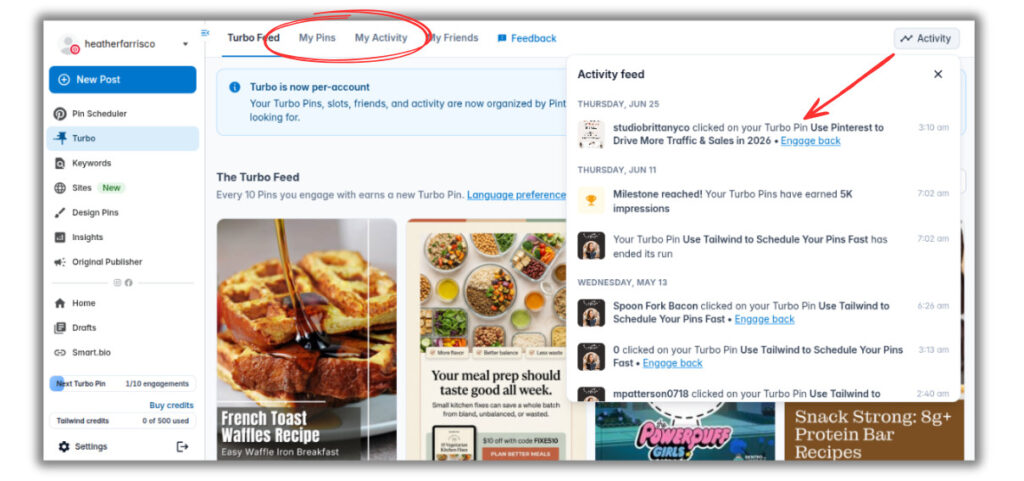
You can even see individual activity and stats on your pins and who is engaging with your content. You can see exactly who is supporting you and see their content to return the favor. Your pins you submit have 30 day or more time periods where they’re active for others to see.
RELATED: How to Increase Pinterest Engagement With This Single Tactic
Final Thoughts on Upgrades With Tailwind For Pinterest
These new Tailwind for Pinterest features are super helpful for anyone serious about growing their Pinterest presence.
- By leveraging the Keyword Tool, you’ll target the right audience from day one.
- Carousel pins will help you create more compelling content in a single pin.
- Image Refresh ensures your pins stay fresh across multiple boards without triggering duplicate content penalties.
- Tagged products streamline your shop integration.
- Smart Schedule settings and bulk delete options give you greater control over your pin calendar.
- With Turbo, you’re tapping into a community-driven engagement system that amplifies your reach organically.
Whether you’re just starting out or managing multiple client accounts, Tailwind for Pinterest with these tools will save you time, reduce errors, and help get you better results faster.
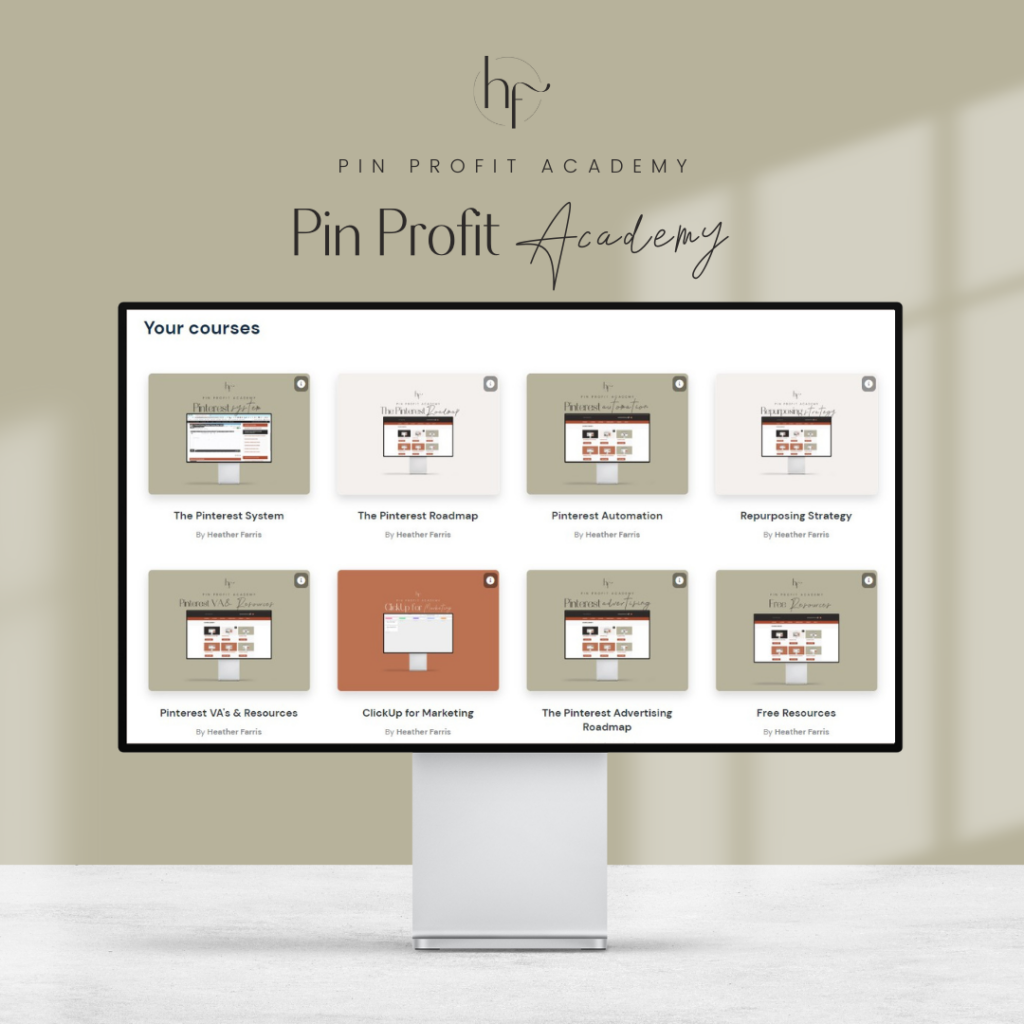
If you’re ready to master these features and build a sustainable Pinterest marketing strategy that actually works, I’d love to have you join me inside Pin Profit Academy. There, I’ll walk you through every tool, every feature, and every strategy you need to succeed on Pinterest. Hope to see you inside!
Pin Profit Academy
Marketing can be difficult and trying to figure it out on your own, especially with Pinterest, can be overwhelming.
I will show you how to double your traffic and sales without spending another minute on social media!
PPA is the only comprehensive membership program & community for creating, marketing & selling your products & services using Pinterest.
Pin it for later


Heather Farris went to school for accounting and worked for years in banking and finance. After finding all of that entirely too boring she started her first blog in her basement in August of 2016. She has started 3 blogs in the marketing, motherhood and travel niches and used Pinterest to grow them all. She quickly became the go-to Pinterest strategist in her peer circles and has been implementing strategies, driving traffic and sales through organic and paid tactics for her clients. On this blog and her YouTube channel, as a renowned Pinterest marketing expert, she educates the public about clear and transparent marketing strategies to help them to grow on Pinterest and in other places online. She created Pin Profit Academy and helps small business owners just like you to master their Pinterest marketing strategy. Heather is now a Pinterest Educator, one of the very few sponsored by Pinterest.