

How to Claim Your Substack on Pinterest and Create a Strategy
I’m going to show you how to claim your Substack on Pinterest, why, and how to develop a strategy with best practices from there.
My name is Heather Farris. I’m a Pinterest educator and marketing strategist. I have an education company, an agency that I run, and I’ve been doing this for almost 10 years.
What we’re talking about today
In today’s post on how to claim your Substack on Pinterest, we have a few goals. We’re going to:
- get your Substack publication domain claimed
- start the process of claiming your Pinterest account
- create a Pinterest strategy to drive traffic to your Substack
There are a number of steps in between all of those that we are also going to cover. It’s a long one, but full of everything you need to know in the right place. Let’s get started.
Why I started a Substack
I recently started a Substack for my travel blog, Wheeling to Dream. And I wanted this Substack to be a place for me to write a newsletter to my audience, without having to have a closed system, like I normally would on Kit. Yes, I know Kit also offers a Substack like public publication. However, I wanted it to be fast, streamlined, and offer more for my email list.
This newsletter through Substack is a companion to the travel blog. You will see me go behind the scenes there. Here today, I’m going to:
- talk about the travel blog’s Pinterest account
- how I’m incorporating Substack into it
- how we’re creating Pinterest pins for it, and so on.
Let’s just jump right into the first tutorial for actually connecting Substack to your custom domain. This domain is necessary in order to claim your Substack on Pinterest.
RELATED: A Super Simple Pinterest Strategy for Bloggers
Preparing your Substack for Pinterest marketing
To prepare your Substack for Pinterest marketing, you need to have a few things in place first before you can get started.
- Already have your domain purchased that you’ll use for your Substack.
- Setup Google Analytics 4 for that domain.
- Have Google Search Console setup and connected to GA4.
- Have your Substack account publication live and ready for subscribers.
- Log into your Pinterest account that’s already set up and optimized.
I won’t be showing those 5 pre-steps in this blog post. If you need to do any of those things, here are some of my own resources, and others I’ve linked to, that will explain how to do so.
- Purchase your Domain Through NameCheap
- How to Setup GA4: A Complete Step-by-Step Guide
- Google Search Console: The Ultimate Guide
- How to Start a Substack Newsletter in 20 Minutes
- How to Start a Pinterest Account (the Right Way!)
If you do not have anything on your Pinterest account yet, that is fine. But you at least want to have the Pinterest account created as a business account. Make sure you are logged into it and not another account so you have access to the right settings.
Cost of adding a custom domain
Now, just a warning for you here: you have to pay $50 USD in order to complete a custom domain registration with Substack. This is the only time I’ve ever seen this with an online platform, but that’s what it is.
You want the legitimacy of owning your domain even though it’s hosted on Substack, which is almost completely necessary for the whole point of using Pinterest to market to your Substack. As you first set up your domain (instructions below), you’ll be prompted to make that payment before you can move forward.
Setting up your custom domain with Substack
Now that you’re finally ready with all the prep, let’s start this step by connecting your domain in Substack. You’re going to need all these things open in separate windows.
- your domain register open (Name Cheap or wherever you purchased it)
- your Substack settings page
In your Substack settings, under ‘Advanced’, go to ‘Domain’. There’s a section that says ‘Add a custom domain’, and you’re going to click ‘Add’.
Paste in the URL for the domain. Make sure that you include the ‘www’ before the domain, then it’s going to give you a green check mark to confirm the URL is good. It’s also going to ask if you want to do root domain redirects? Redirecting from the variation of your URL with the ‘https’ as well? Yes, check that box.

RELATED: How to Claim Your Website on Pinterest
Advanced DNS settings with your domain register
Now we need to add those URL variations into your DNS settings. Under your domain name registrar settings, you’re going to find your advanced DNS settings. It will look different for everyone since there are so many different domain sellers. If you need to consult your registrar’s help desk or chat assistance be sure to do that.
Within those settings, you’re going to find the section for ‘Host records’. Here is where you’re going to add two records. These are what popped up under your ‘Root domain redirects’ in the last section. My NameCheap dashboard looks like this.

So you’re going to add the applicable ‘A record’ and ‘CNAME’ values into your DNS settings area. Adding two separate records for those values. Make sure you enter all three values exactly as they are, even with little periods.
- Record Type
- Name/Host
- Target/Value
After you click ‘Check Status’, it can take up to 36 hours for your settings to sync. If you get an error, double check your values and just refresh. If everything looks good but it’s showing an error, do be patient.
When your DNS settings are verified
Soon it will say, ‘Your DNS records look good from our end. Our system will do a few checks and your domain name will be active soon’. Click ‘Done’ and then you can see now that your domain is listed. The root domain redirects default to disabled. You likely want them enabled, and you can toggle that.
But what I want you to see is the domain status is verified and that the DNS configuration is verifying. Once all of that is done, your actual Substack will convert from the generic name.substack.com to your custom domain name. So mine, for example, does not say chronicalesfromthenetherlands.substack.com. Now my substack only exists as https://www.chroniclesfromthenetherlands.com. That’s what you’ll see for yours.
RELATED: How to Make Your Website Pinterest Friendly
Connecting Google Analytics to your new domain
Now, we’re going to move on to actually getting the Google Analytics 4 connected to your Substack. After going to analytics.google.com, if you did all the prep work, you should already have your Substack domain in your account properties.
You are going to go into the data stream to get an ID. You’re going to:
- Select your ‘Account & Property’ in the toggle at the top.
- Enter your ‘Admin Settings’ in the bottom left corner.
- Under the ‘Property Settings’ go to ‘Data Streams’.
- Click on your Substack data stream that should be there.
- In the details, copy the ‘Measurement ID’.
- Go back to your Substack dashboard, and under ‘Advanced’, click ‘Analytics’.
- Under the ‘Google Analytics Measure ID’, paste in your copied ID.
Now you are done with connecting your Google Analytics to your Substack.

Claiming Your Pinterest Account
Okay, the next step in this process, is to get your Pinterest account claimed for the domain that you now own. Now, a little warning for you: You are not going to be able to claim your Pinterest account through the traditional methods that are listed inside of Pinterest.
Because you don’t own Substack itself, you do not have access to their hosting or header code. The only method you can use to claim it is to use a TXT record. That means you’re going to use the same steps that we did before in order to claim your Substack on Pinterest.
- Have your domain registrar dashboard open.
- In a new tab, go to https://www.pinterest.com/settings/claim.
- Under the ‘Websites’ section, click the ‘Claim’ button.
- Copy the TXT record in the popup box, but DON’T hit ‘Continue’ yet.

Now Pinterest has exact instructions on how to do this with a TXT record through your domain registrar. I’ve copied their help page section down below so you can see. The key thing here is to use an @ symbol in the ‘Host’ field I’ll show you next.

So let’s go do that now. Back in your advanced DNS host records, just like before. Your hosting settings will be:
- Record Type = TXT Record
- Name/Host = @
- Target/Value = (what you copied from Pinterest)
Click the check mark, and that will get to work. This process is a lot faster for Pinterest. You don’t actually need as many minutes or days to actually verify this. So you can go back to your Pinterest screen and click ‘Continue’ on the popup window.
You’ll just paste in your Substack domain and click ‘Verify’. Then it will say “Verification in progress. We’ll email you within the next hour with an update”. And that’s it. When that is done, then you are good to go. If for some reason it does not claim, you just want to repeat the process.
RELATED: Why You Need to Optimize Your Website for Pinterest
Creating a Pinterest strategy for Substack
Okay, in this step we’re going to talk about the creation of your actual Pinterest strategy for Substack. No point in doing all the above without supporting it now moving forward. I’m not going to cover a deep strategy, I’ll link below to my complete strategy guide. But understanding the process will help you get started.
I’m going to cover three of the five basics of your Pinterest strategy. I am really specifically talking to people today who are creating content that is searchable. For example, with my Substack, if someone were to go to Google and search “finding housing in the Netherlands”,my post on Substack might come up because I’ve followed this SEO strategy. This is what you want. And these strategy points will get you there.
RELATED: Stupid Simple SEO Review: How to Learn SEO Step by Step
Optimizing with keywords for your topics
Start with Pinterest keywords and that’s going to then relay into boards and Pinterest pins. Your keyword buckets are each topic that you talk about. Inside of those you’re going to have subtopics that you’ll also do additional keyword research on, but may also go on to become Pinterest boards. Then those will go on to become Pinterest pins.
My big overarching topic here for the entire Substack newsletter is we moved to the Netherlands. Underneath that umbrella is going to be topics like:
- Housing
- School
- The financial component of doing something like this
- Moving logistics
- The city that we live in and exploring that
- Travel within the country that we might do
Those things will populate as they come. On my Substack as of this moment, I don’t really have a lot of articles just yet, and they all really do fit into the same bucket. But I will add to it as my boards grow.
RELATED: 6 Places to Use Keywords to Optimize Your Pinterest Profile
Your Pinterest board strategy
As you get started on Pinterest, start with one theme that turns into one Pinterest board, and then you can add additional Pinterest boards onto your strategy as you create more of that content. It will grow over time.
As of this writing, I have only four articles on my Substack. That’s not a lot, which means that my Pinterest board strategy is very basic for the Substack articles. That’s okay, start somewhere. I know it’s going to expand.
RELATED: The Ultimate Guide to Create Your Pinterest Board Strategy
Promoting your Substack as your blog, newsletter or both
The Substack is really just an extension of my travel blog. It’s my travel blog’s newsletter. I have the newsletter sign up for Substack on my homepage. If you go to the blog, you’re going to notice it in the sidebar. And then my blog posts themselves also have sign up boxes from Substack inside of them.
These two things are connected together, which is why my blog is also where I’m going to promote my Substack newsletter. This is probably the case for the majority of people. They have a website and they added a newsletter. Now, a lot of people these days do seem to be migrating to Substack to be their main blog, and that’s okay, too.
Either way is fine for the topic of this post today, but consider your options based on your audience and if you have a community. If you want to do all of your main blogging on Substack and you don’t have anything else, then you’re going to be starting your Pinterest account from scratch too, and that’s great and I can help you do that.
RELATED: A Super Simple Pinterest Strategy for Bloggers
Pinterest pins for your newsletter and posts
Now, how this relates to Substack. Take your images from your posts, and even use new images, to create pins for. I have pins for posts and also my newsletter as an opt-in, like a pin for a freemium or download with a call to action.
I have boards for Living in the Netherlands that I want to write more articles for, so I will create pins for those. But don’t be afraid to pin right to your newsletter or paid subscription opt-in, if you have one for your Substack.
RELATED: How to Make Pinterest Pins for Lead Magnets
Next steps with how to claim your Substack on Pinterest
A quick recap of how you create a Pinterest strategy for your Substack.
- Use keywords that are your umbrella topics, then subtopics underneath that.
- Then create Pinterest boards based on those topics.
- Lastly, create pins that link to those articles on your Substack.
It does not matter if you’re starting from zero with a brand new Pinterest account and you’re just writing Substack newsletters. If you have no other blog or your own website, this strategy still works for you.
I hope this tutorial for how to claim your Substack domain, how to claim your Pinterest account, and create a Pinterest strategy for your Substack newsletter has been helpful. I am brand new to Substack as well, but knew what I had to figure out will be helpful for others too with how to claim your Substack on Pinterest.
If you’d like help with your Pinterest strategy and continuing to grow and support your small business as a content creator, I invite you to join us inside of Pin Profit Academy. Let’s get the best return on your Pinterest strategy!
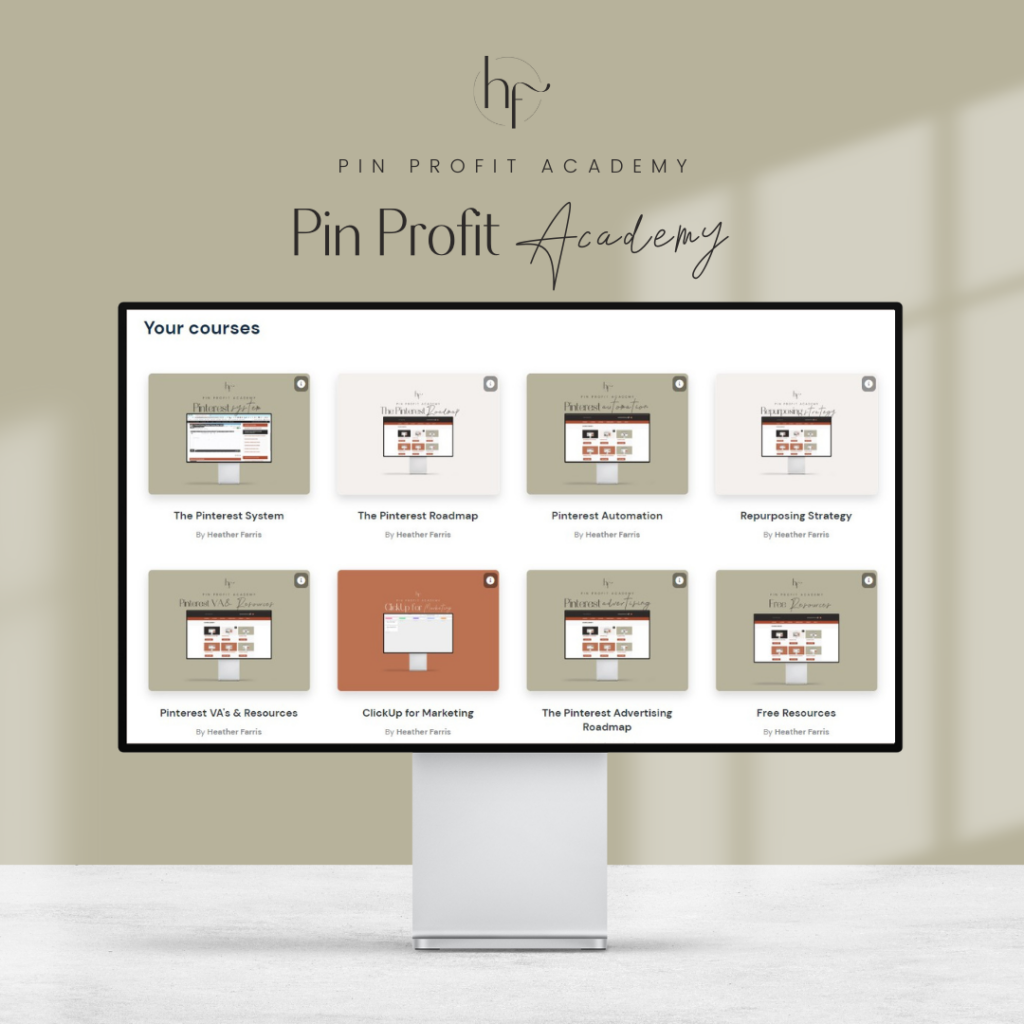
Pin Profit Academy
Marketing can be difficult and trying to figure it out on your own, especially with Pinterest, can be overwhelming.
I will show you how to double your traffic and sales without spending another minute on social media!
PPA is the only comprehensive membership program & community for creating, marketing & selling your products & services using Pinterest.
Pin it for later


Heather Farris went to school for accounting and worked for years in banking and finance. After finding all of that entirely too boring she started her first blog in her basement in August of 2016. She has started 3 blogs in the marketing, motherhood and travel niches and used Pinterest to grow them all. She quickly became the go-to Pinterest strategist in her peer circles and has been implementing strategies, driving traffic and sales through organic and paid tactics for her clients. On this blog and her YouTube channel, as a renowned Pinterest marketing expert, she educates the public about clear and transparent marketing strategies to help them to grow on Pinterest and in other places online. She created Pin Profit Academy and helps small business owners just like you to master their Pinterest marketing strategy. Heather is now a Pinterest Educator, one of the very few sponsored by Pinterest.