

Tailwind Updates For Pinterest Marketing Automation
Tailwind has released new features. Honestly, I’m so excited about these two new Tailwind updates for Pinterest because they are singlehandedly saving me so much time!
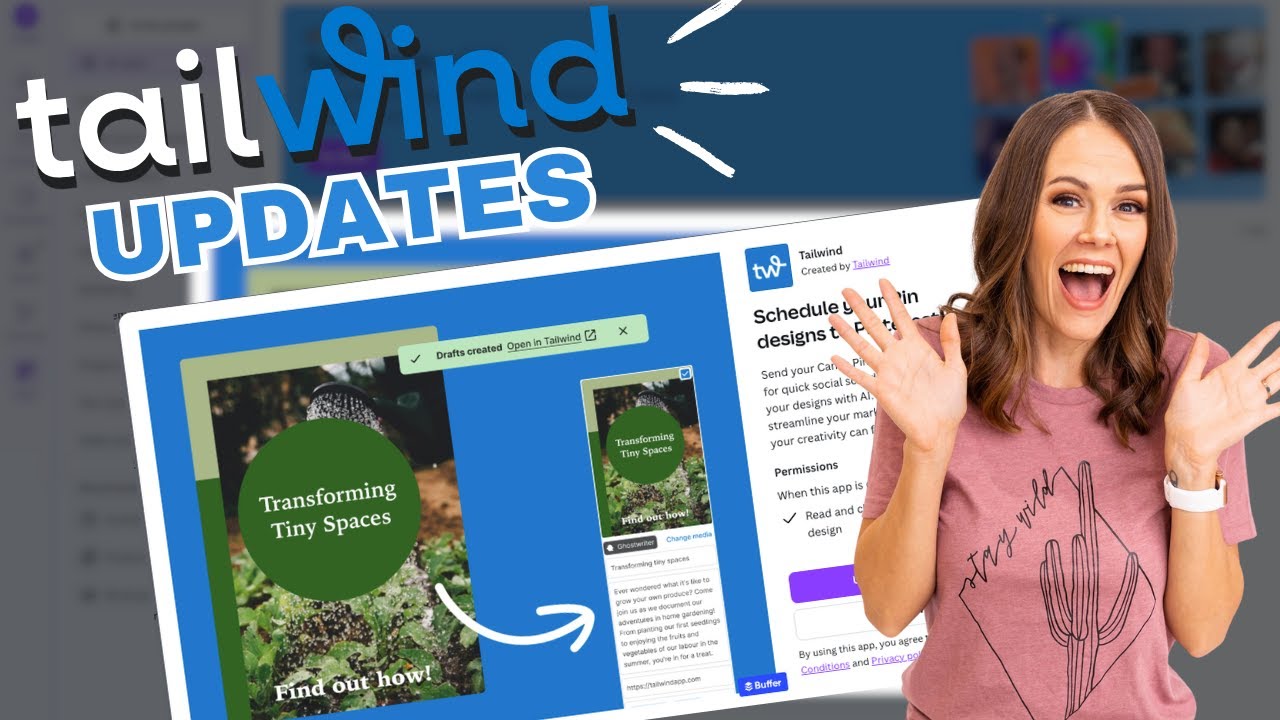
As I look back at my email newsletters about Tailwind over the years, the theme has always been time management and efficiency within my scheduling workflow with their tool. So in today’s post, let’s actually talk about what the two new features are.
- Pin spacing replaces scheduling intervals
- Tailwind integration into Canva
I’m going to show you exactly what they are and how to use them. A lot of people I’ve talked with didn’t know about these so I want to make sure you do! Let’s dig in.
Pin spacing replaces scheduling intervals
The first new feature is pin spacing. Pin spacing is replacing what we used to know as intervals when it came to the scheduling tool.
It used to work that you would put multiple boards on one Pinterest pin for Tailwind to publish to, over an interval of say 7 days. Tailwind would gradually publish to those boards for that interval.
Now pin spacing overrides intervals. You can select varied spacing for specific URLS no matter what your general intervals are. Maybe you have only a single pin for a few boards that you want a month apart and it’s different than your default interval.
RELATED: How to Use Tailwind for Pinterest & Automate Your Pins in One Hour Per Week (OR LESS)
Bulk scheduling multiple pins
You can schedule multiple pins this way too. If you have a group of pins, let’s say 8 to 10, and you want to send them to the same URL, you can fully optimize them. Set your pin spacing guidelines as desired, hit ‘Schedule all’, and it will add them to your queue according to that pin spacing.
Now, this is super delightful because I was scheduling pins one by one previously. I always have multiple pins per URL, and I highly suggest you have the same, and this saves a ton of time. I don’t have time to waste and neither do you. This really helps that.
RELATED: How Often Can You Pin the Same URL to Pinterest Without Being Spammy?
Tailwind integration into Canva
The second newest feature in the Tailwind updates for Pinterest marketing is a Canva integration, which Hallelujah!, I’m so excited about too. Now, this doesn’t bring Canva into Tailwind like some of the other third party scheduling tools. It actually brings Tailwind into Canva, and I’m going to show you what this looks like.
You can now design all of your Pinterest pins in Canva and push them out to your Tailwind drafts, from inside of Canva. Thank you, Tailwind, for thinking of something that I didn’t think of myself! No more downloading and uploading and all of that mess. As a Pinterest manager running my Pinterest marketing agency and doing this for clients, it saves me a lot of time for ALL my clients that prefer we use Tailwind.
As always, I have screen tutorials prepared for you to show you exactly how to use these features. So, let’s jump into those.
RELATED: How to Create Pins for Pinterest in Canva: An Image Workflow to Save Time
Setting and changing default pin spacing
From your Tailwind drafts screen, the pin spacing is the three lines with the arrow on it in the upper right of your schedule. Now, if you click that, you can edit default pin spacing with whatever pins you have selected to schedule.

Now because Tailwind released a new feature allowing you to integrate with Canva, now I don’t have to download these and then upload them to Tailwind. Next I’ll show you how to do this from Canva instead, eliminating the transfer step.
RELATED: How to Bulk Schedule Pins on Pinterest for FREE
Setting up the Tailwind app in Canva
First thing, inside of Canva, go to ‘Apps’ in the left-hand menu, and search for ‘Tailwind’. Then select ‘Use in new design’, search ‘pin’, and choose ‘Pinterest 2:3’ for a blank new pin template.

Now you can create your pin or set of pins as desired, either from scratch or by uploading design templates you already have. In this example I’m going to bulk create a handful of pins that are going to the same URL. Once your pins are ready in one design, then we can import them to Tailwind next.
RELATED: How to Batch Create Pinterest Pins for a Month Using Canva
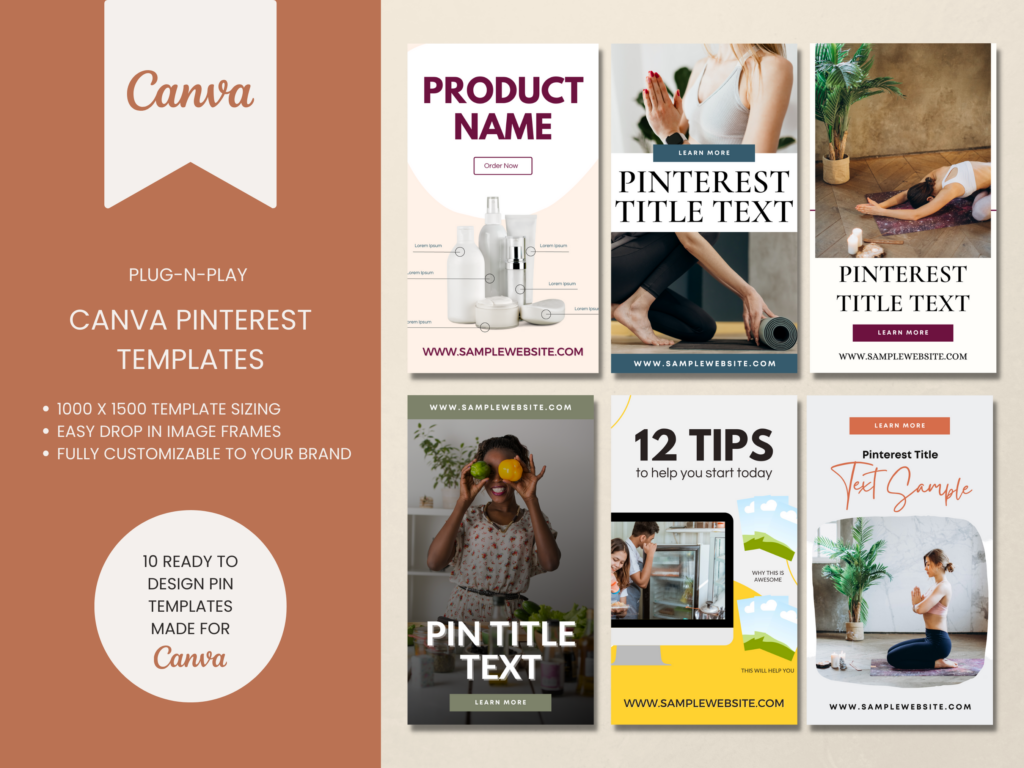
Video or Content Pinterest Templates
If you want traffic don’t rely on something just whipped up! Speed up your pin creation by using templates to get more pins out faster and more often.
These Pinterest templates are great for video content or blog posts & are ready to go. You can start creating pins on Pinterest in minutes.
Starting a bulk upload of pins from Canva to Tailwind
After your pins designs are ready, go back down here in the menu on the left side, and select Tailwind again. And then you want to select whatever account is connected to your Tailwind.
Here’s where you insert all of your information that is input to the Tailwind scheduler:
- Pin title
- Pin description
- Destination URL
- Boards, or boards lists
This is why I highly recommend you have a pin plan, or Pinterest System with everything already to go, so that you can just copy and paste everything as you schedule. You can go ahead and add boards here if you want to. I usually do not assign boards here because I’m going to send them to different boards from within Tailwind.

You can still make edits over in Tailwind. And depending on which pins are what, or how many to the same URL, etc. you can adjust as you like. You can even choose which files you actually share and don’t have to stick with all of them.
RELATED: The Ultimate Guide to Create Your Pinterest Board Strategy
Using Tailwind Ghostwriter inside Canva export
You can select ‘Create’ in the Tailwind options for the ghostwriter to generate pin descriptions. Make sure to include your keywords and you can review the results it creates. If you’d like to use the description it creates, just click ‘Add to design’ and it will add it for you.

RELATED: Use Tailwind Ghostwriter to Write Your Pin Descriptions For You
File types while exporting
If some of your pin designs are videos or animated so they aren’t a simple Pinterest image, I would recommend you export them separately. I do all of my PNGs together, then all of my MP4 video pins all together. plan
If you export video pins with image pins, the export process may not work fully. Your video pins can get flattened into basic images on their way to Tailwind, great way to ruin them. So just share them across separately to be safe.
Now if you go over to your Tailwind Drafts, you’ll see the pins you have exported. They’ll also be in your Pin Scheduler.
RELATED: How To Make Video Pins For Pinterest With Canva
Pin spacing tips and controls
When you’re in the Pin Scheduler, the pin spacing option is above the schedule on the right right. There is a default setting that you can override and adjust at any time. After selecting your pins ready to put into the schedule, select your pin spacing so that pins with the same URL are spread apart.
The pin scheduler is very versatile and you can play with things. You can reset and shuffle all the pins in your queue. If you want to learn more about pin spacing, Tailwind’s article here is a very good resource.
Of both the Tailwind updates for Pinterest automation, this one is more customizable rather than the Canva integration.
RELATED: How Often Can You Pin the Same URL to Pinterest Without Being Spammy?
Final thoughts on Tailwind updates for Pinterest
Wrapping up, these Tailwind updates for Pinterest marketing automation make your pin production and scheduling faster and easier.
Pin spacing replaces intervals so you can schedule batches to the same URL without manual delays. And the Canva integration lets you design and send pins straight to Tailwind drafts without extra downloading.
Ready to turn this into steady growth? Join Pin Profit Academy for step‑by‑step training, templates, and support to scale your Pinterest content strategy and grow your small business, or platform for content creators.
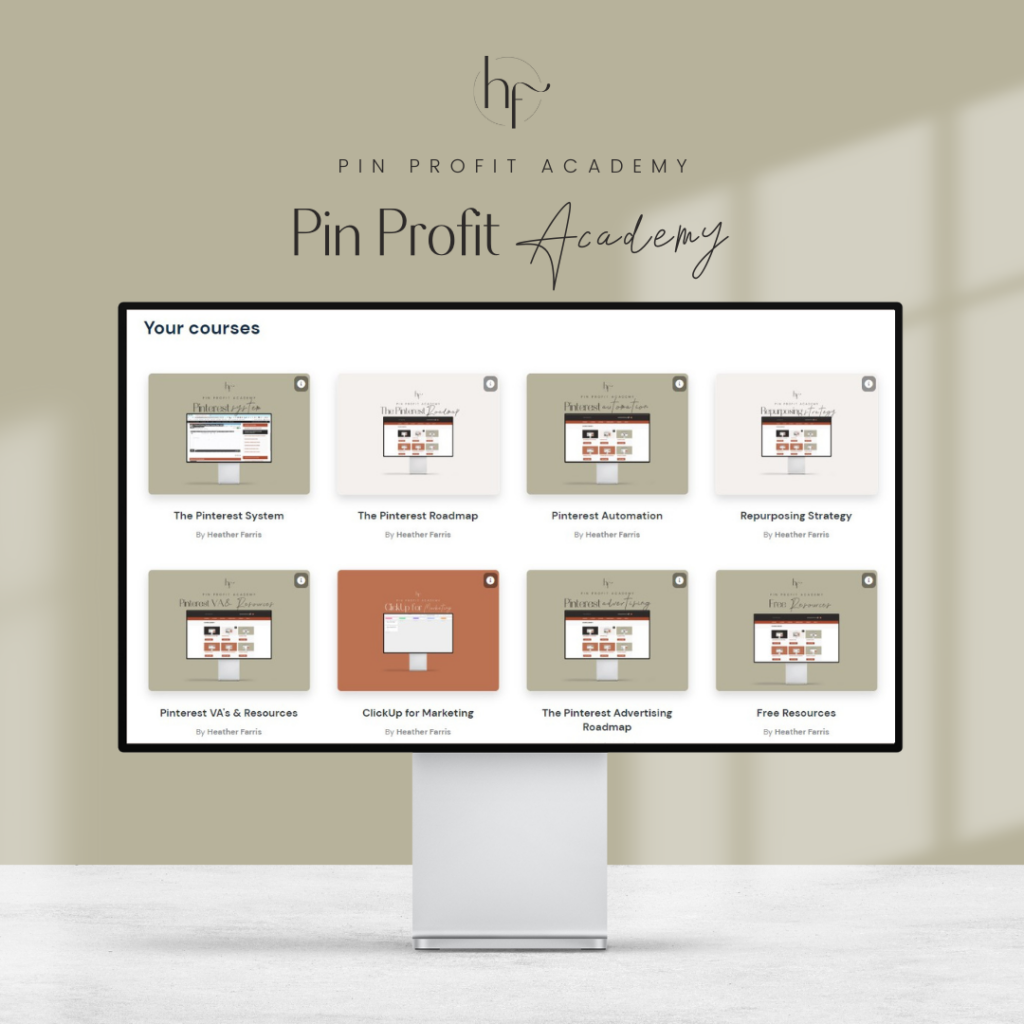
Pin Profit Academy
Marketing can be difficult and trying to figure it out on your own, especially with Pinterest, can be overwhelming.
I will show you how to double your traffic and sales without spending another minute on social media!
PPA is the only comprehensive membership program & community for creating, marketing & selling your products & services using Pinterest.
Pin it for later


Heather Farris went to school for accounting and worked for years in banking and finance. After finding all of that entirely too boring she started her first blog in her basement in August of 2016. She has started 3 blogs in the marketing, motherhood and travel niches and used Pinterest to grow them all. She quickly became the go-to Pinterest strategist in her peer circles and has been implementing strategies, driving traffic and sales through organic and paid tactics for her clients. On this blog and her YouTube channel, as a renowned Pinterest marketing expert, she educates the public about clear and transparent marketing strategies to help them to grow on Pinterest and in other places online. She created Pin Profit Academy and helps small business owners just like you to master their Pinterest marketing strategy. Heather is now a Pinterest Educator, one of the very few sponsored by Pinterest.